
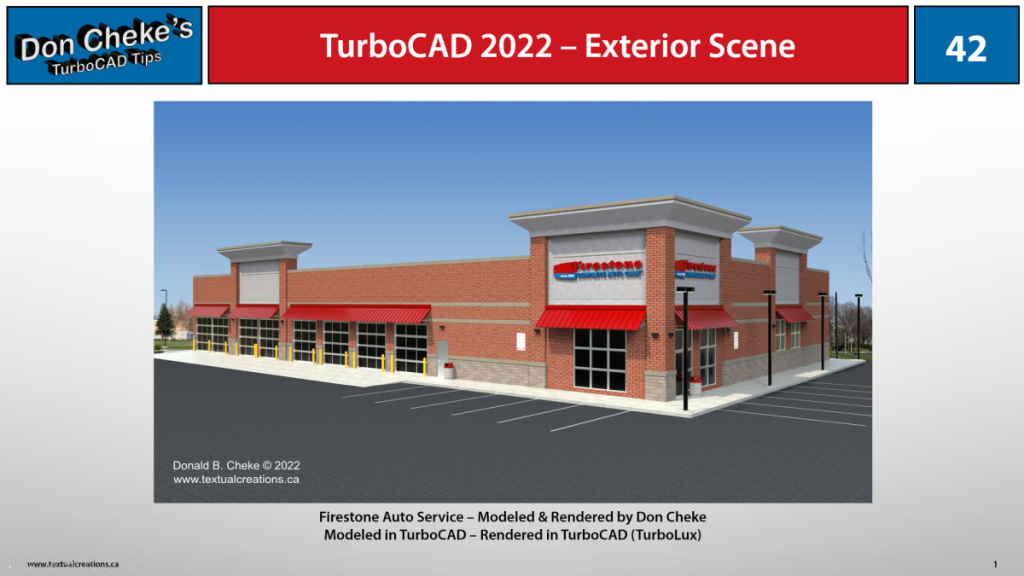
42) TurboCAD 2022 – Exterior Scene
This tip is about creating Exterior Scene renders in TurboCAD 2022 with TurboLux Materials and Environments. We will look closely at the methods that Don Cheke has used over the years to establish these exterior scenes and how they can now be created with TurboLux. Video format. Click image to open video in a new window on YouTube.
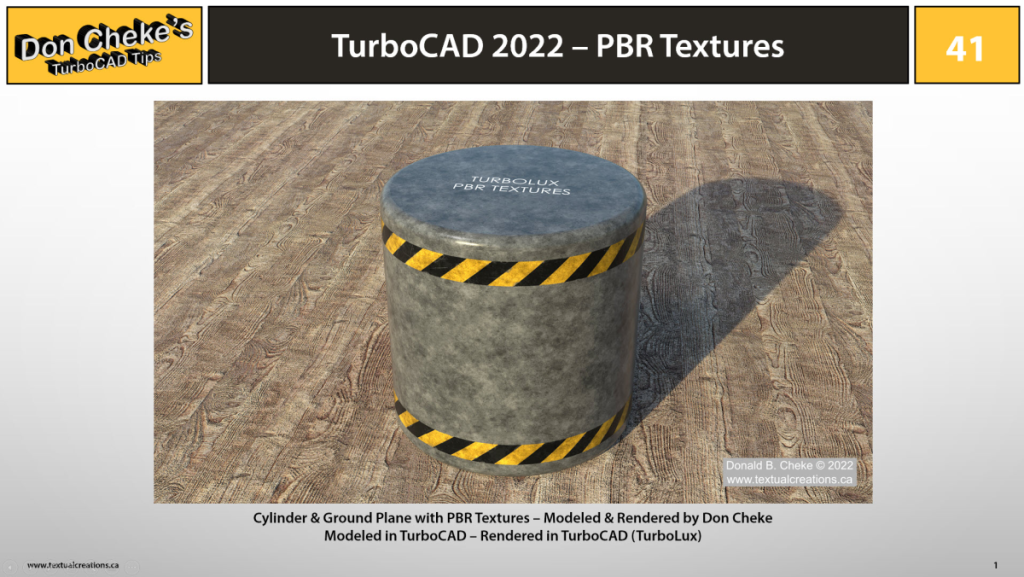
41) TurboCAD 2022 – PBR Textures
This tip is about PBR Textures and their use in TurboCAD 2022 with TurboLux materials. We will look closely at several common PBR shader descriptions and examples. We will also look at a basic model to see how these shaders can be applied and utilized for great render results. Video format. Click image to open video in a new window on YouTube.
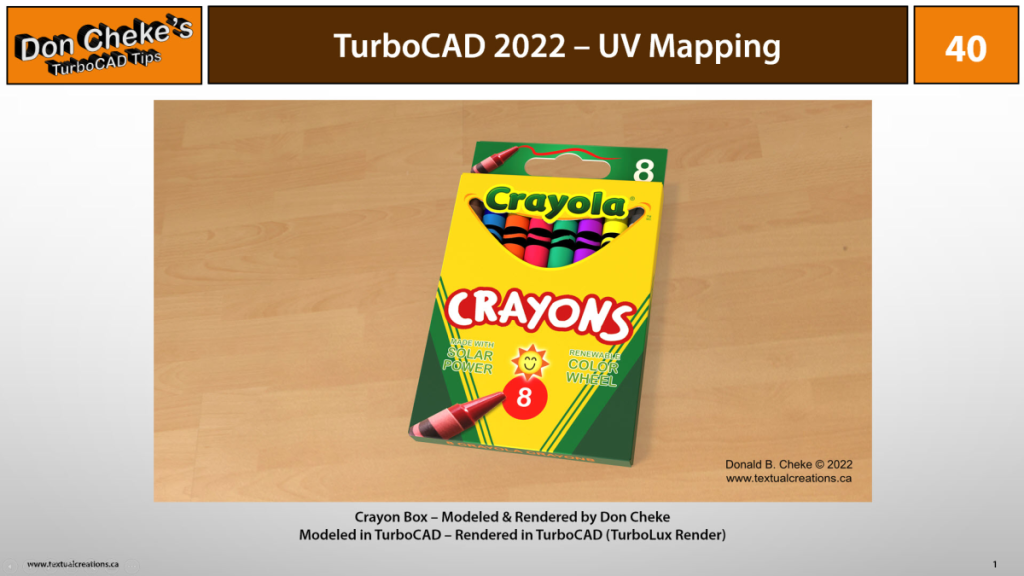
40) TurboCAD 2022 – UV Mapping
This tip is about UV Mapping in TurboCAD 2022 and materials application with the new TurboLux render engine. This presentation includes a demonstration a crayon box build and material creation.
Video format. Click image to open video in a new window on YouTube.
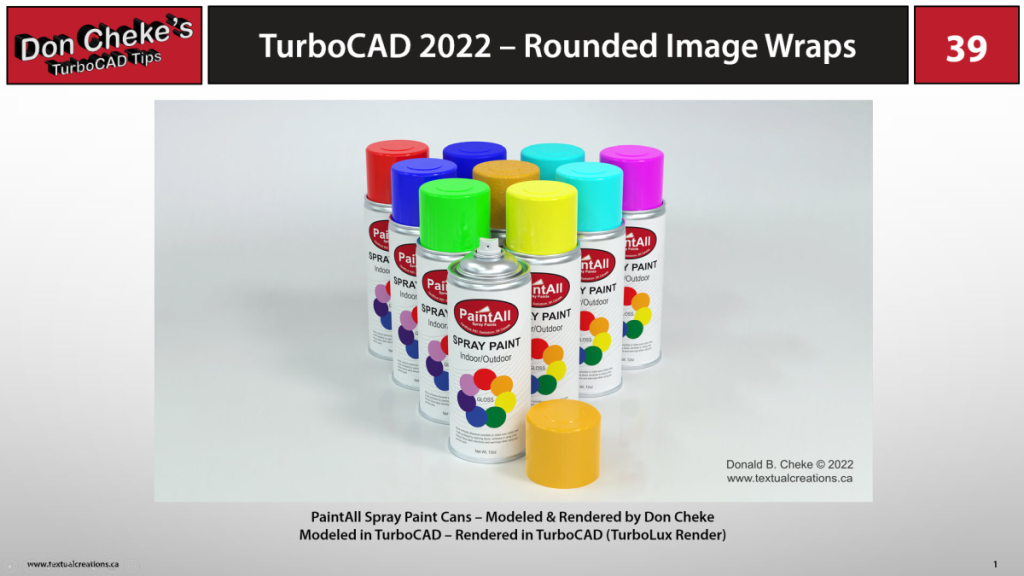
39) TurboCAD 2022 – Rounded Image Wraps
This tip is about applying image wraps to cylindrical and spherical objects or objects with rounded corners. We’ll be using TurboCAD 2022 with the new TurboLux render engine. This will include creating and applying materials, as well as lighting and environments for rendering. You’ll also be presented with an opportunity to model the aerosol spray paint cans seen here.
Video format. Click image to open video in a new window on YouTube.
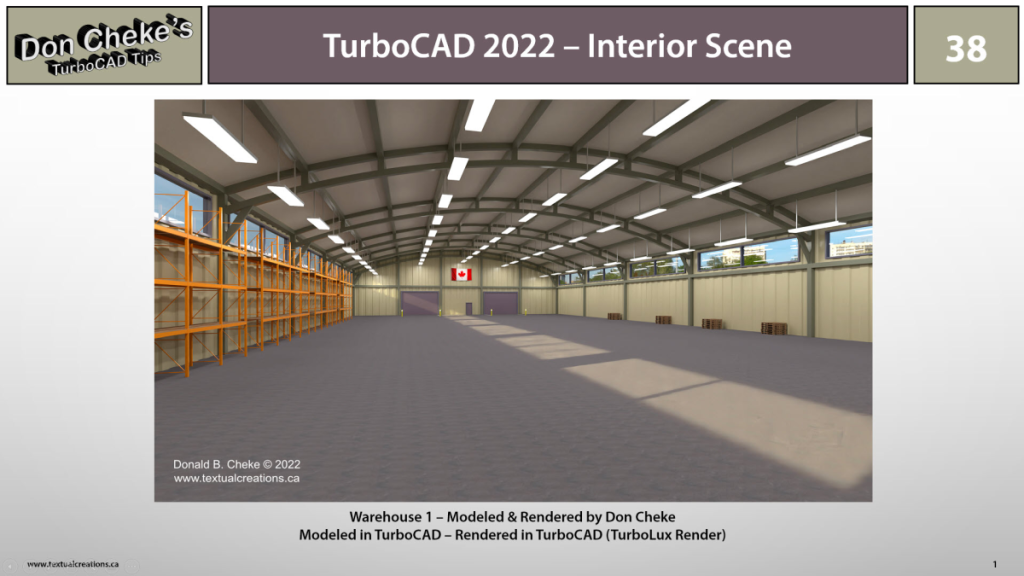
38) TurboCAD 2022 – Interior Scene
This tip is about establishing the interior warehouse scene shown here. We will be using TurboCAD 2022 with the new TurboLux render engine. This will include applying materials, lighting, and an environment for rendering. We will also look briefly at using a studio for rendering smaller parts and assemblies.
Video format. Click image to open video in a new window on YouTube.
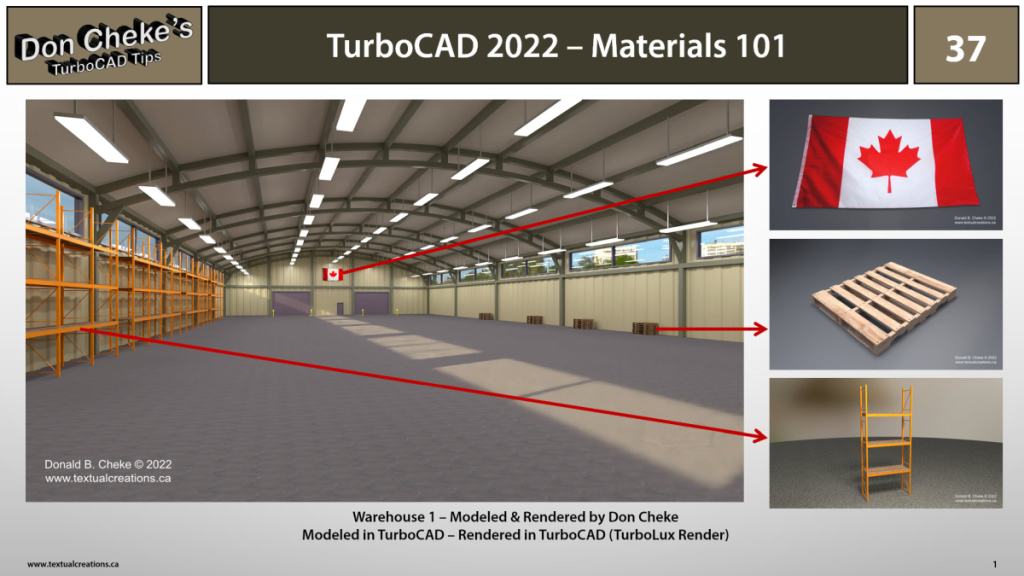
37) TurboCAD 2022 – Materials 101
In this tip we look at establishing several materials in TurboCAD 2022. To do this, we look at three model scenes while applying all the required materials. Since materials are used for renders and therefore reliant on lighting and environment, we also look at lighting and environment in detail. There is enough info in this TurboCAD tip to give viewers a good start to their learning curve while encountering the new TurboLux render engine for the first time.
Video format. Click image to open video in a new window on YouTube.
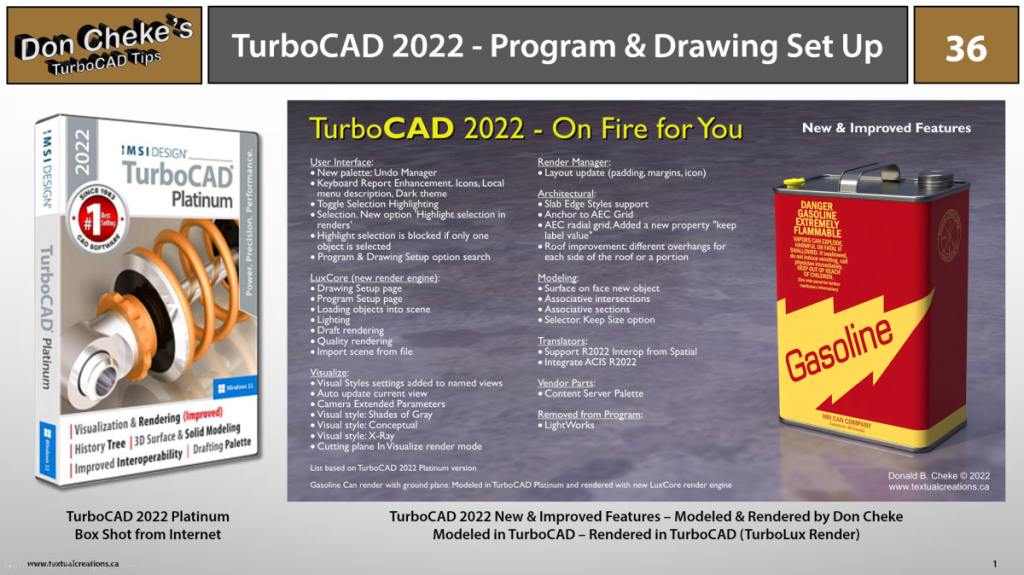
36) TurboCAD 2022 – Program & Drawing Setup
TurboCAD 2022 has arrived and with it comes some major changes. Those major changes have to do with removal of the LightWorks render engine and the addition of a new render engine called TurboLux which is based on the open-source system called LuxCoreRender. This change has come as a big surprise to TurboCAD users and there have been many pleas for help. This tip is my attempt to help users take their first steps into TurboCAD 2022.
Video format. Click image to open video in a new window on YouTube.
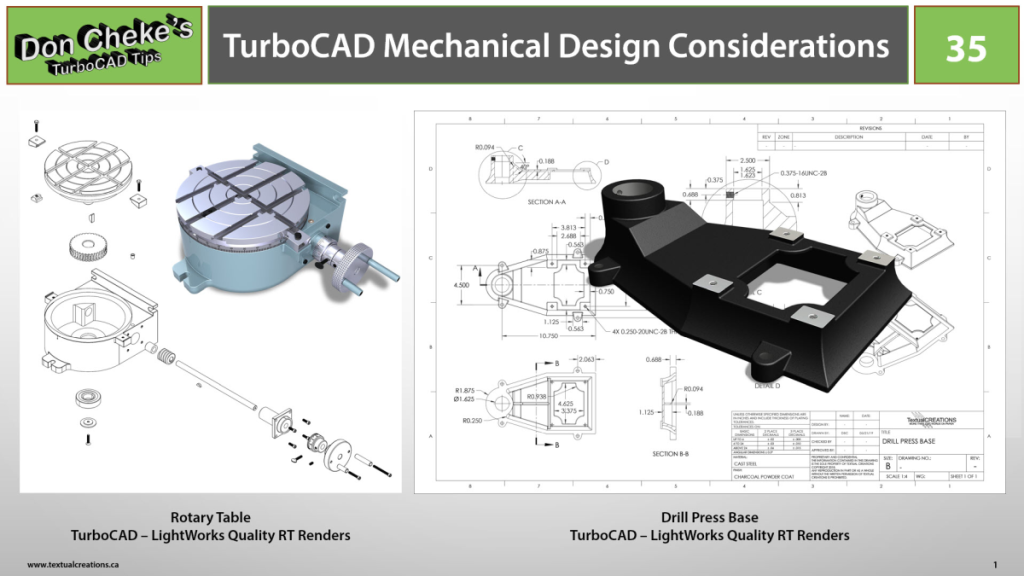
35) TurboCAD Mechanical Design Considerations
Do you ever wonder if TurboCAD is up to the task of getting your design from your table napkin sketches all the way to market?
Video format. Click image to open video in a new window on YouTube.
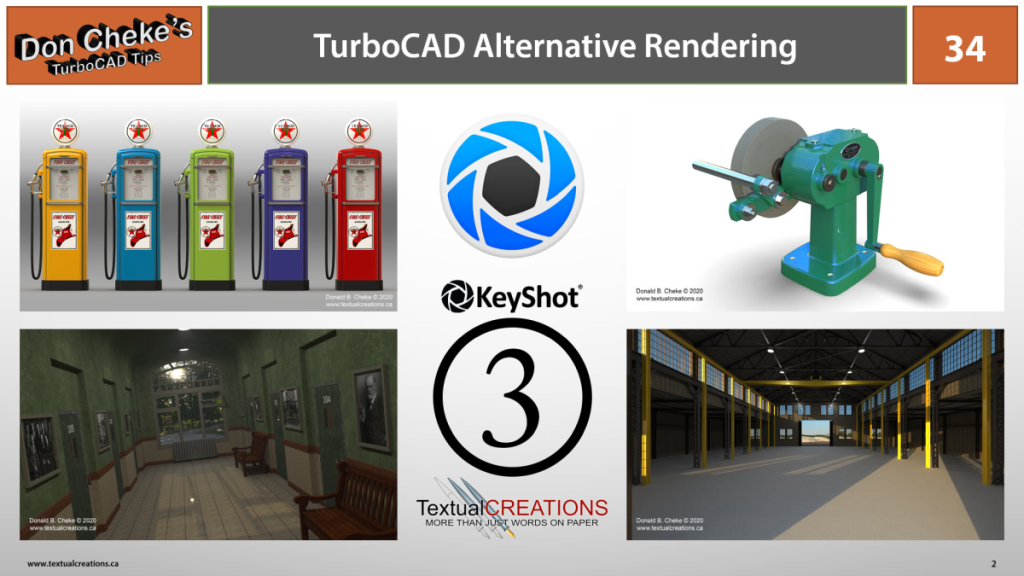
34) TurboCAD Alternative Rendering – 3
Do you ever wonder if there are alternate ways to render you TurboCAD models?
Video format. Click image to open video series playlist in a new window on YouTube.
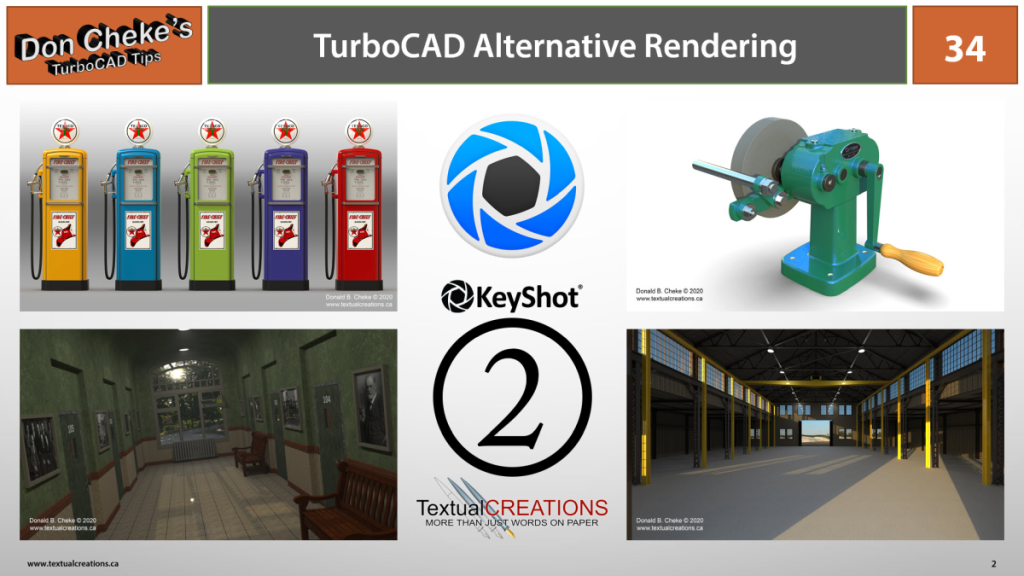
34) TurboCAD Alternative Rendering – 2
Do you ever wonder if there are alternate ways to render you TurboCAD models?
Video format. Click image to open video series playlist in a new window on YouTube.
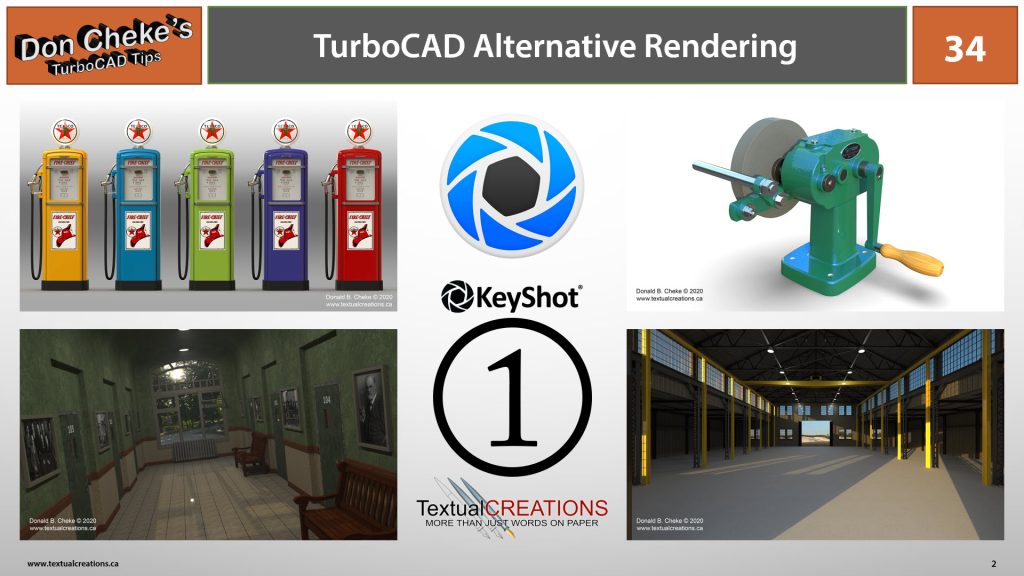
34) TurboCAD Alternative Rendering – 1
Do you ever wonder if there are alternate ways to render you TurboCAD models?
Video format. Click image to open video series playlist in a new window on YouTube.
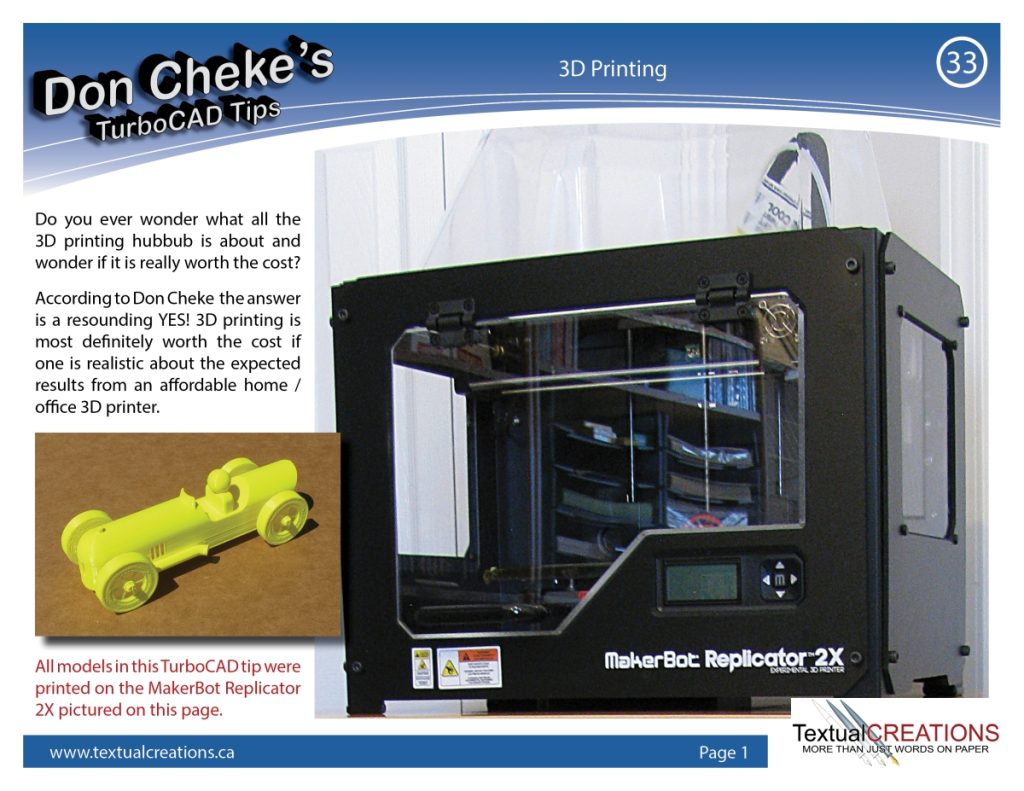
33) 3d Printing
Do you ever wonder what all the 3D printing hubbub is about and wonder if it is really worth the cost?
Click image to open PDF in a new window. 22.6 MB
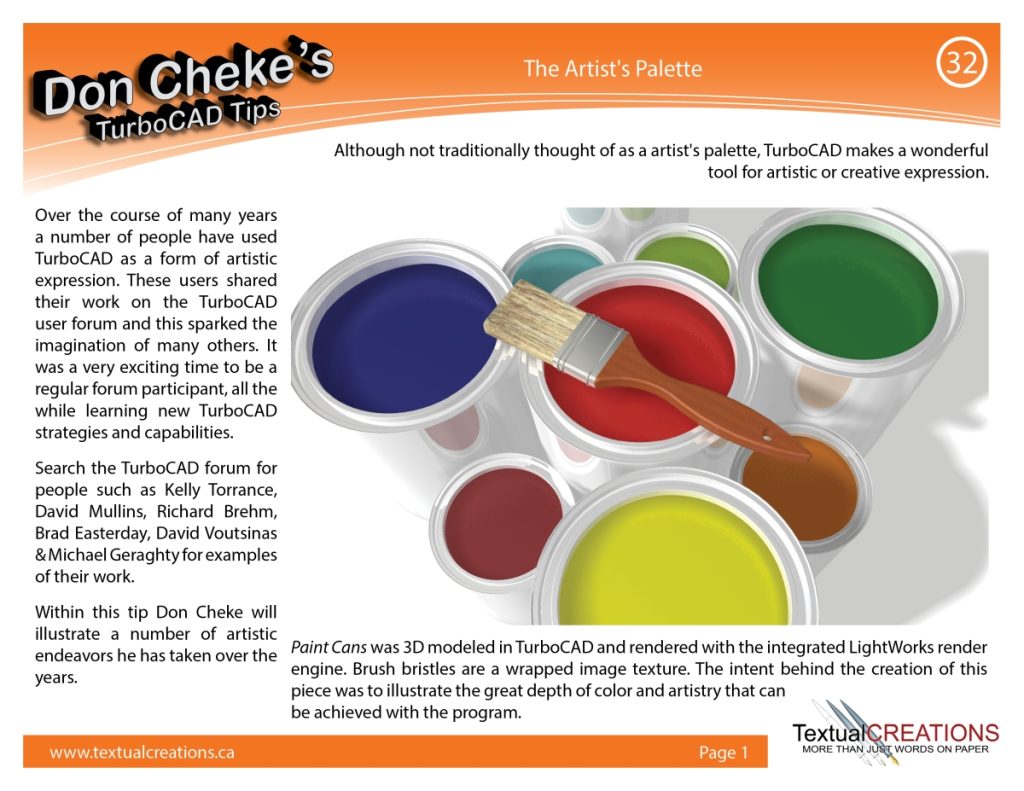
32) The Artist’s Palette
Although not traditionally thought of as a artist’s palette, TurboCAD makes a wonderful tool for artistic or creative expression.
Click image to open PDF in a new window. 11.3 MB
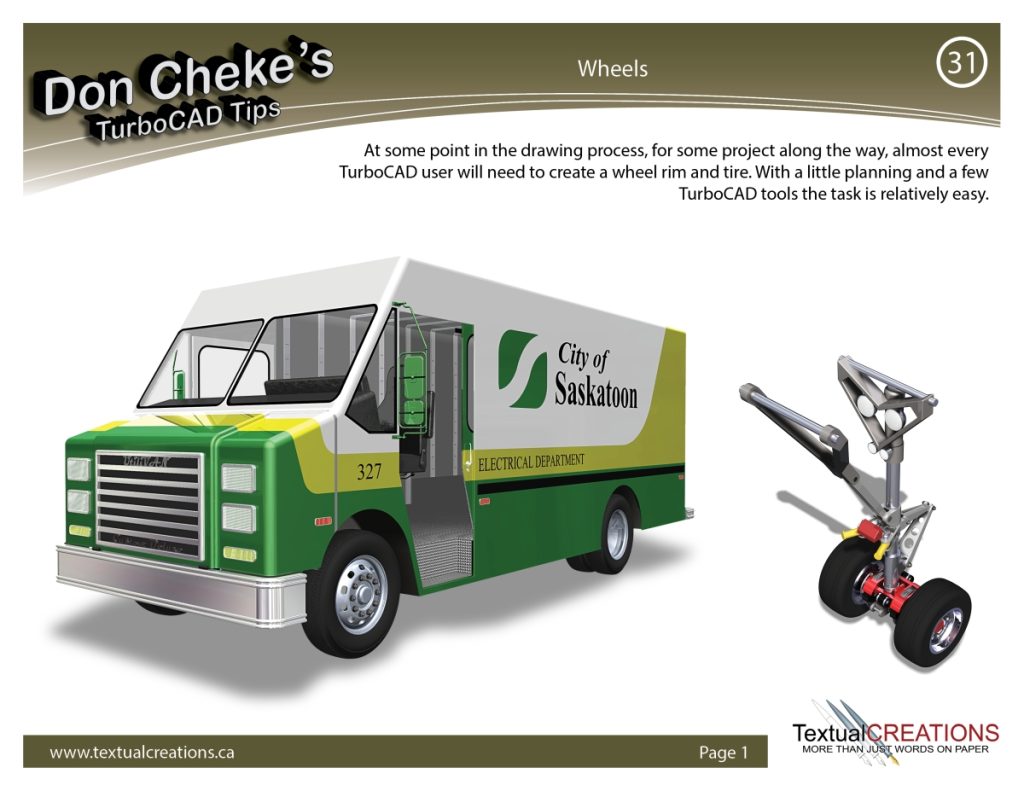
31) Wheels
At some point in the drawing process, for some project along the way, almost every TurboCAD user will need to create a wheel rim and tire. With a little planning and a few TurboCAD tools the task is relatively easy.
Click image to open PDF in a new window. 5.92 MB
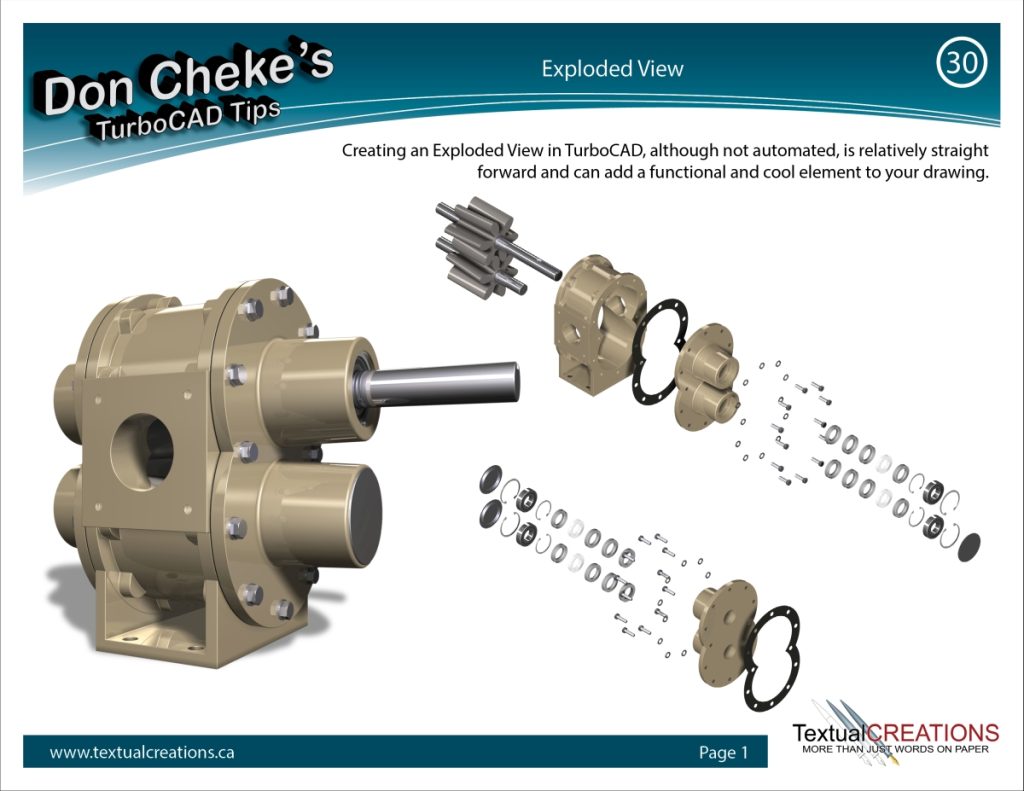
30) Exploded View
Creating an Exploded View in TurboCAD, although not automated, is relatively straight forward and can add a functional and cool element to your drawing.
Click image to open PDF in a new window. 5.46 MB
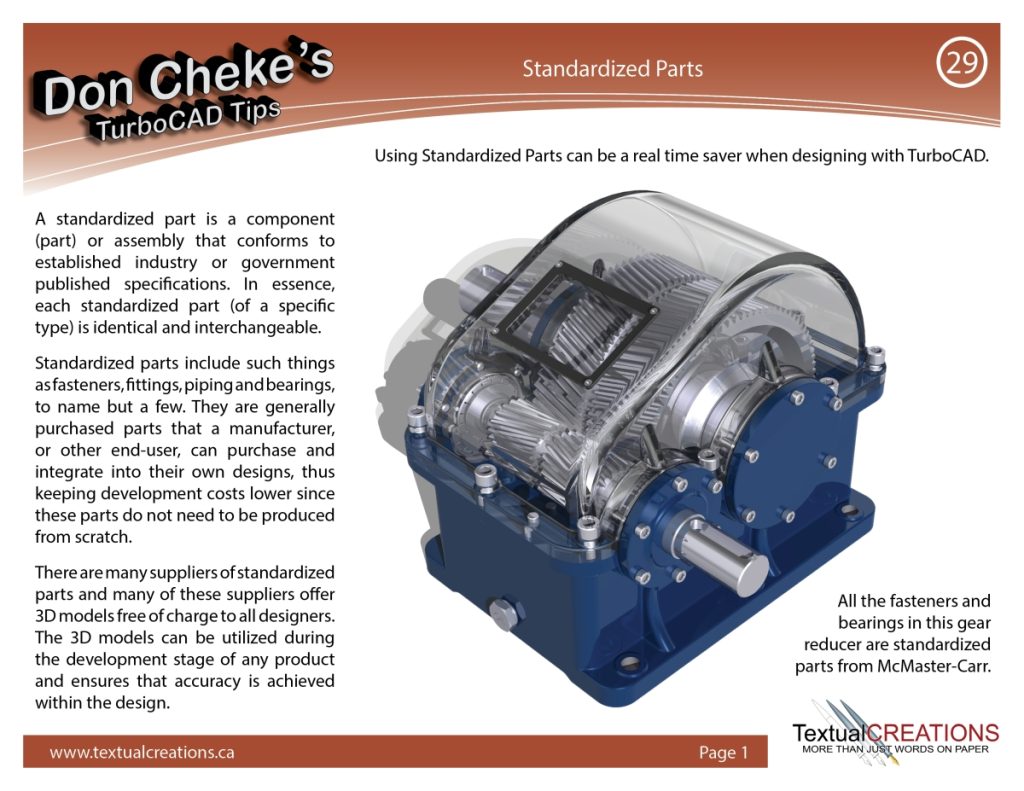
29) Standardized Parts
Using Standardized Parts can be a real time saver when designing with TurboCAD.
Click image to open PDF in a new window. 2.86 MB
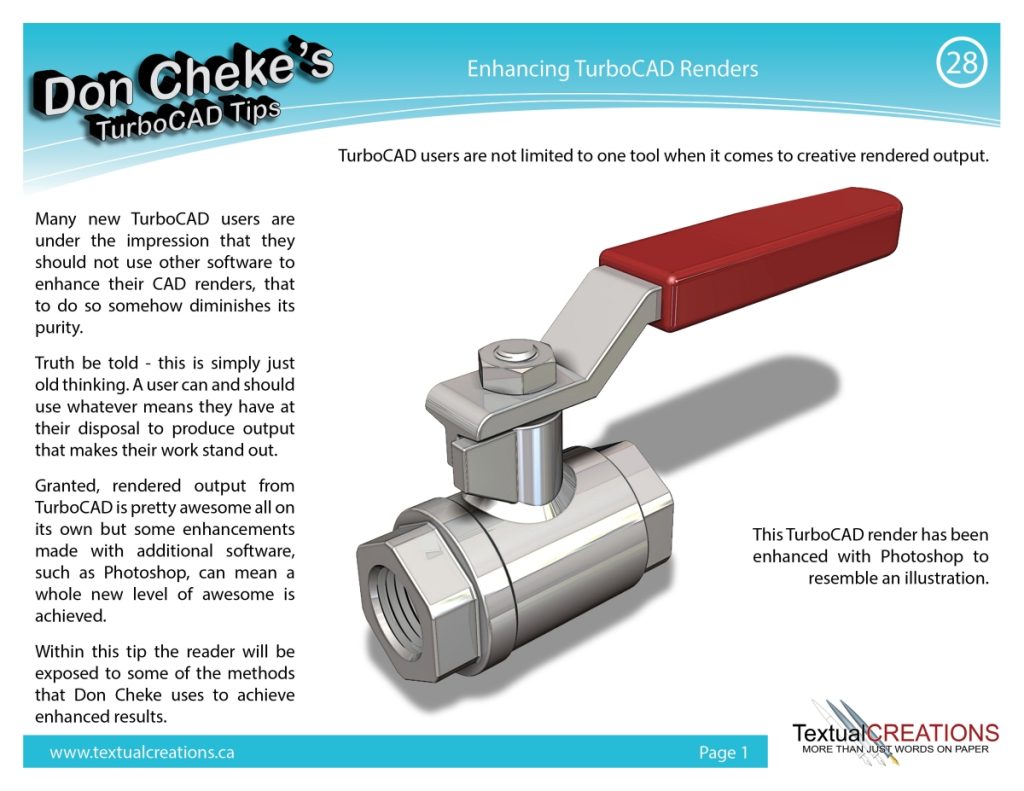
28) Enhancing TurboCAD Renders
TurboCAD users are not limited to one tool when it comes to creative rendered output.
Click image to open PDF in a new window. 8.76 MB
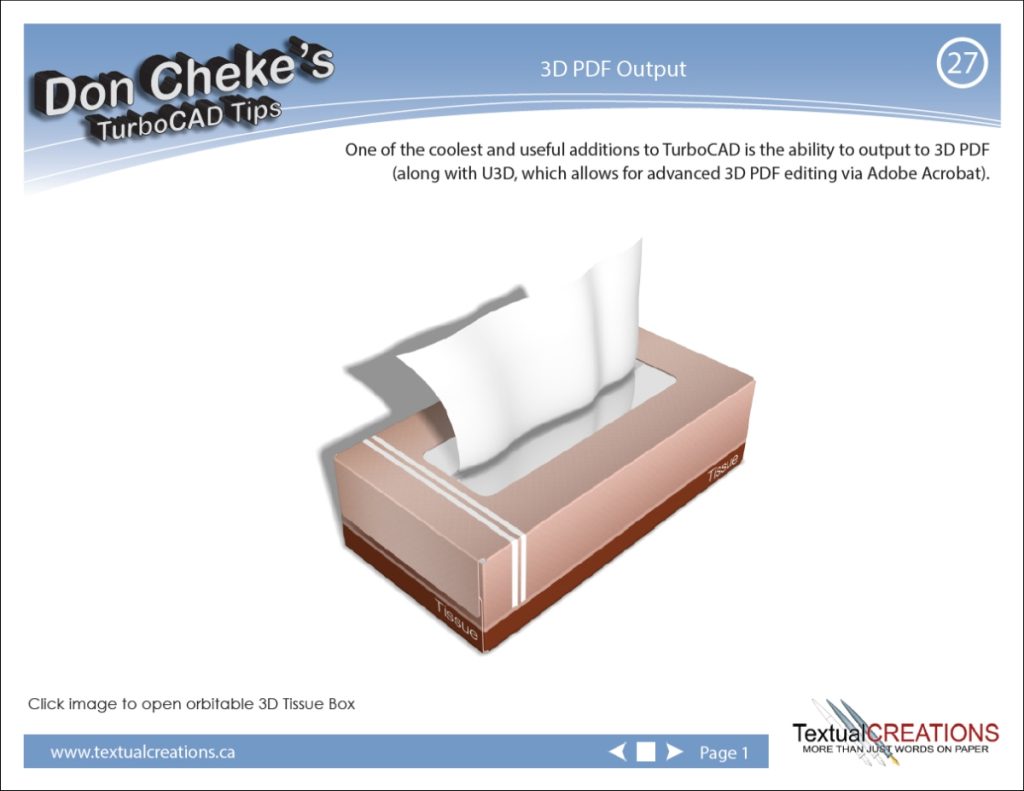
27) 3D PDF Output
One of the coolest and useful additions to TurboCAD is the ability to output to 3D PDF (along with U3D, which allows for advanced 3D PDF editing via Adobe Acrobat).
Click image to open PDF in a new window. 4.85 MB
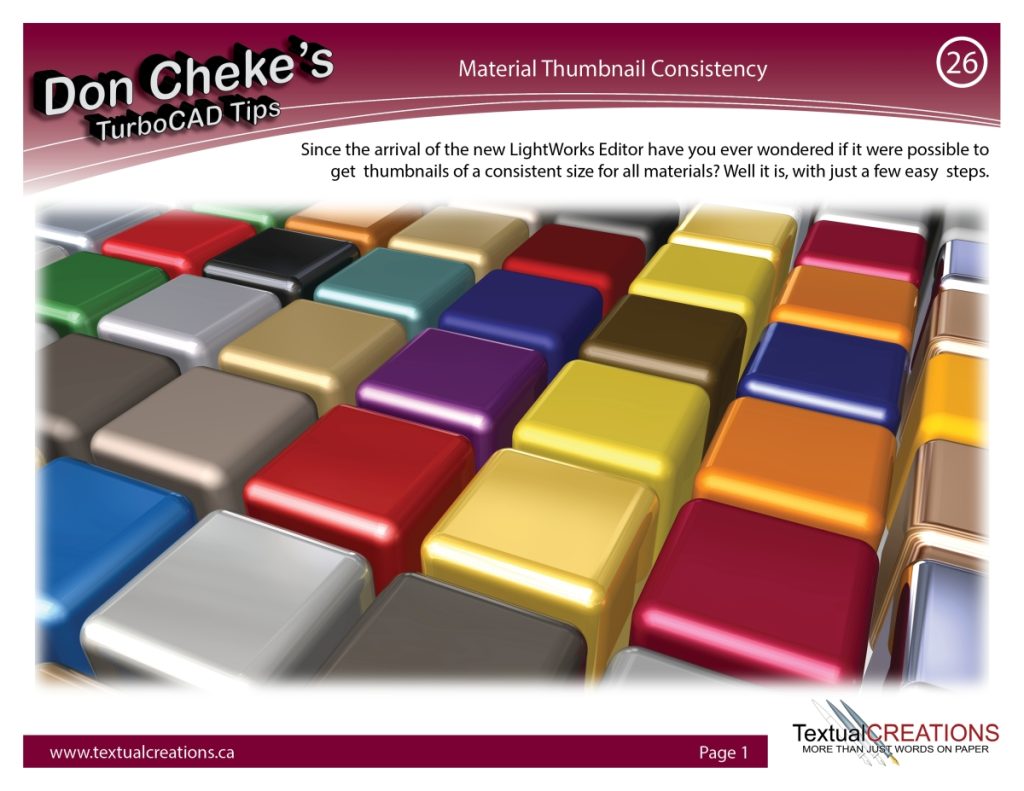
26) Material Thumbnail Consistency
Since the arrival of the new LightWorks Editor have you ever wondered if it were possible to get thumbnails of a consistent size for all materials?
Click image to open PDF in a new window. 2.7 MB
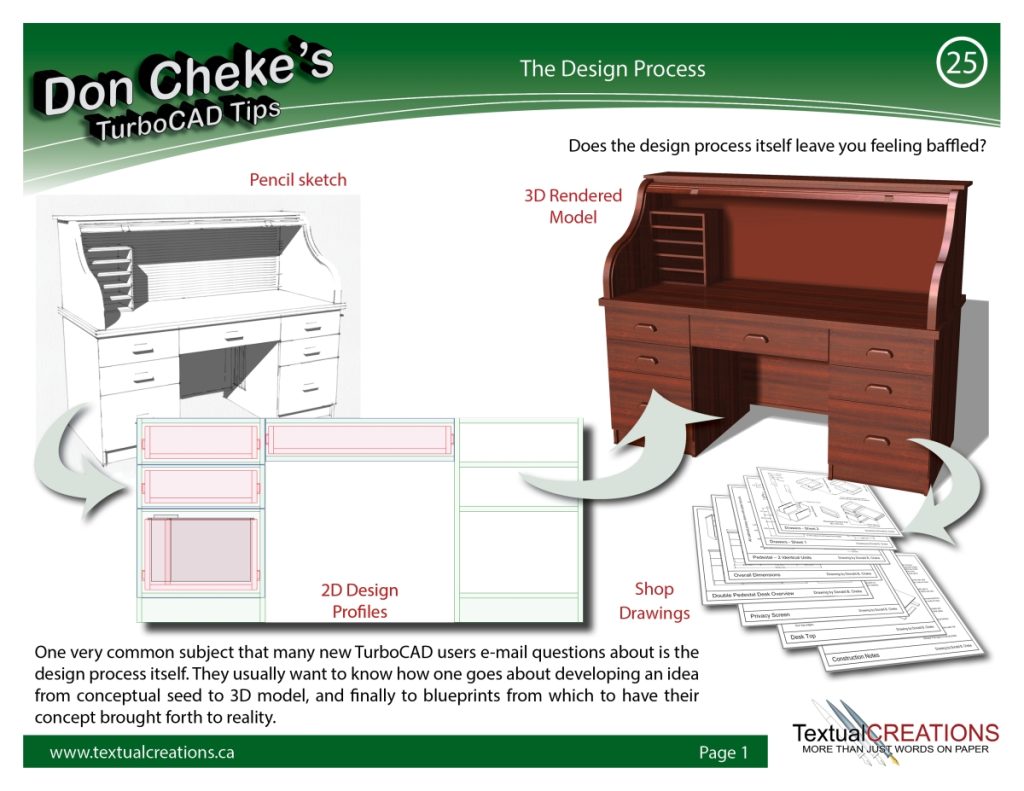
25) The Design Process
Does the design process itself leave you feeling baffled?
Click image to open PDF in a new window. 3.41 MB
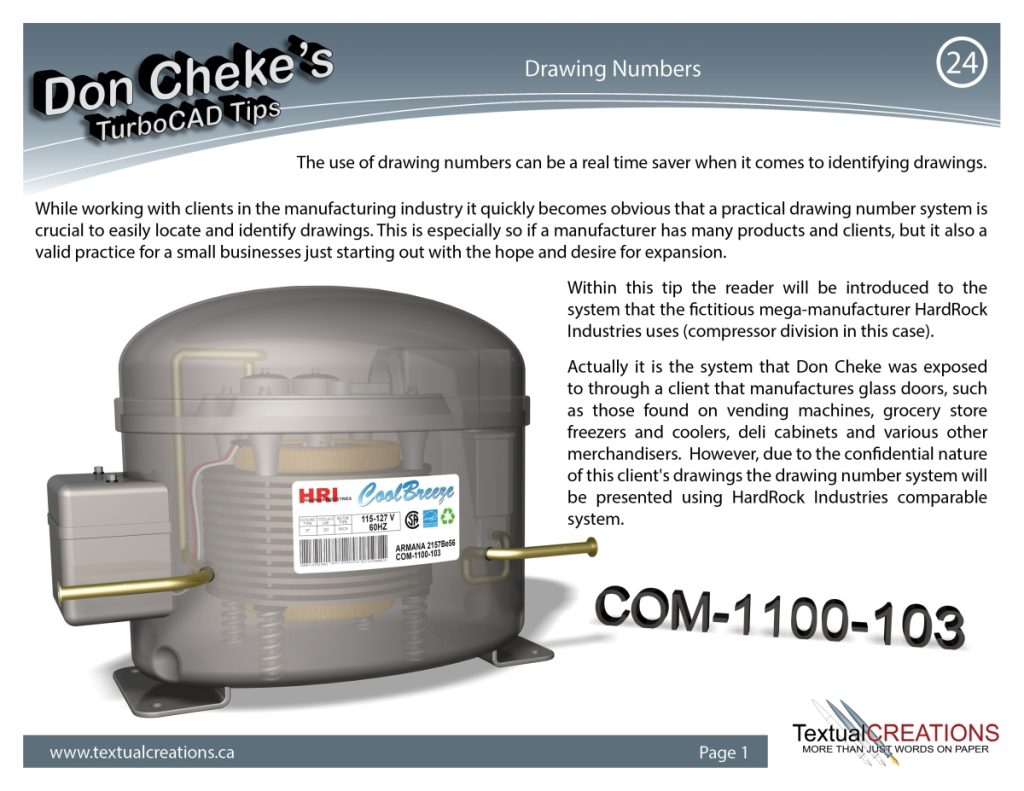
24) Drawing Numbers
The use of drawing numbers can be a real time saver when it comes to identifying drawings.
Click image to open PDF in a new window. 2.46 MB
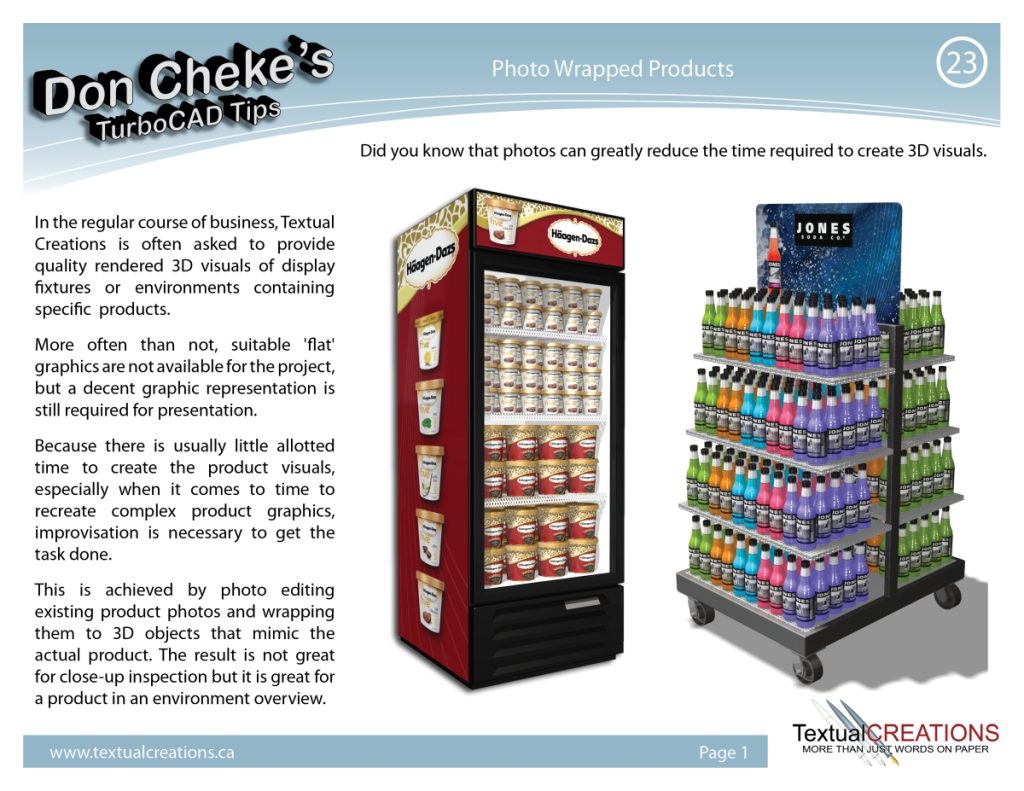
23) Photo Wrapped Products
Did you know that photos can greatly reduce the time required to create 3D visuals?
Click image to open PDF in a new window. 4.03 MB
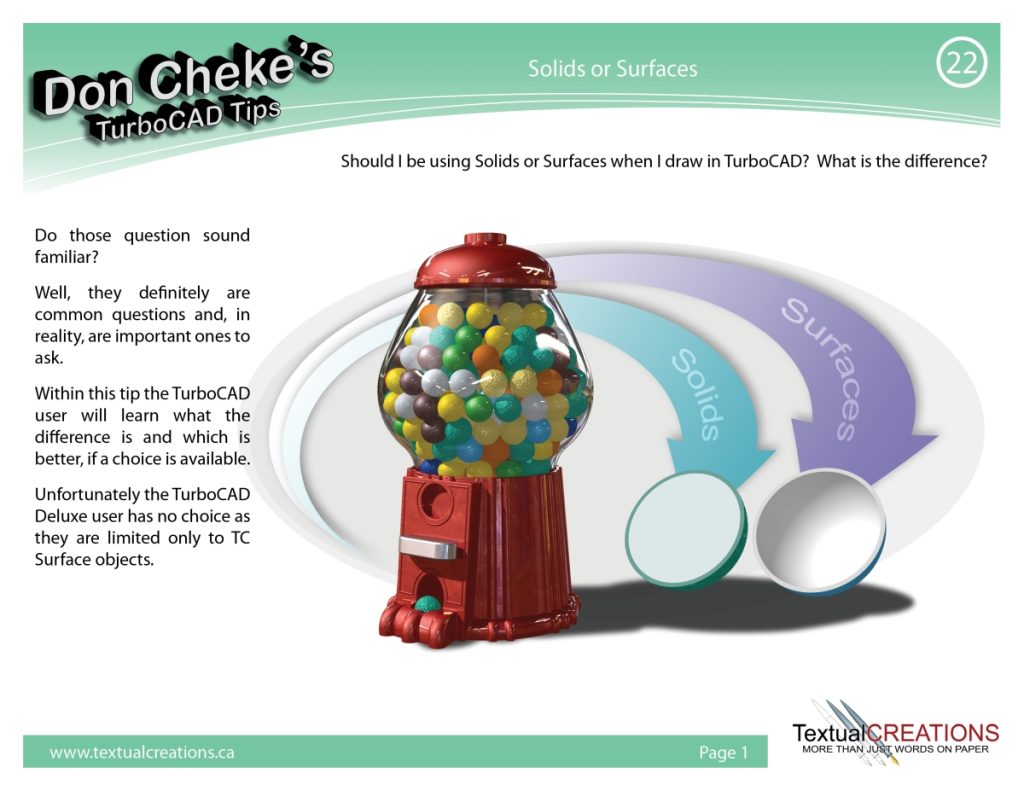
22) Solids or Surfaces
Should I be using Solids or Surfaces when I draw in TurboCAD? What is the difference?
Click image to open PDF in a new window. 2.38 MB
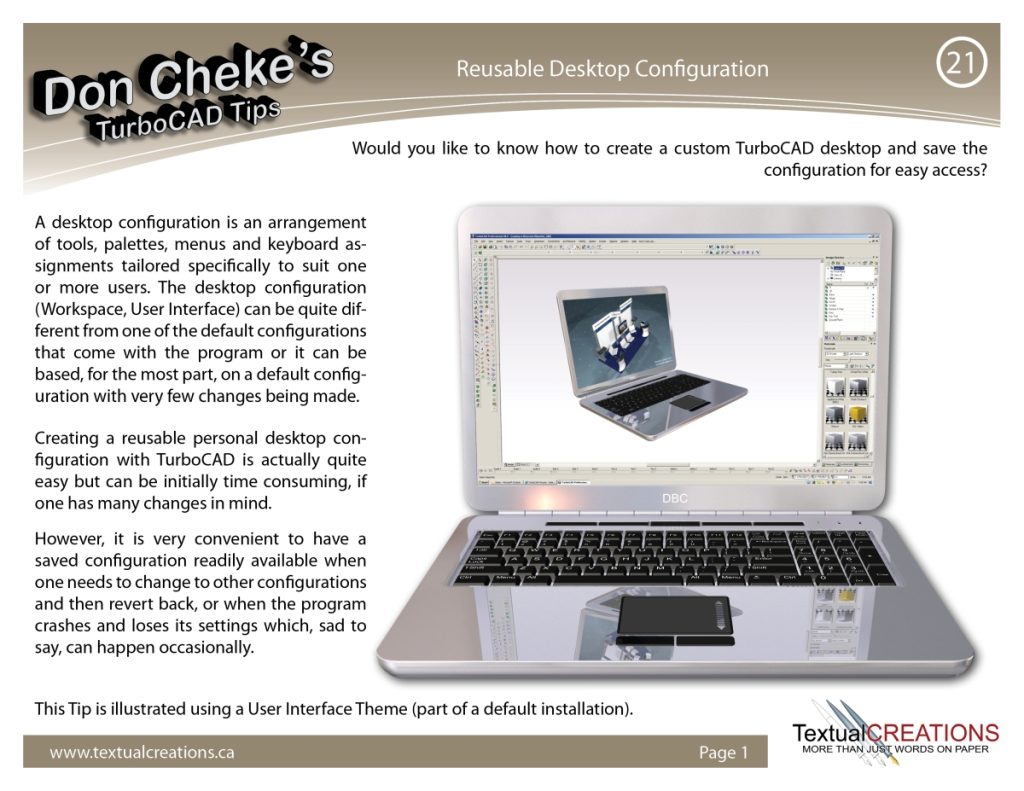
21) Reusable Desktop Configuration
Would you like to know how to create a custom TurboCAD desktop and save the configuration for easy access?
Click image to open PDF in a new window. 3.91 MB
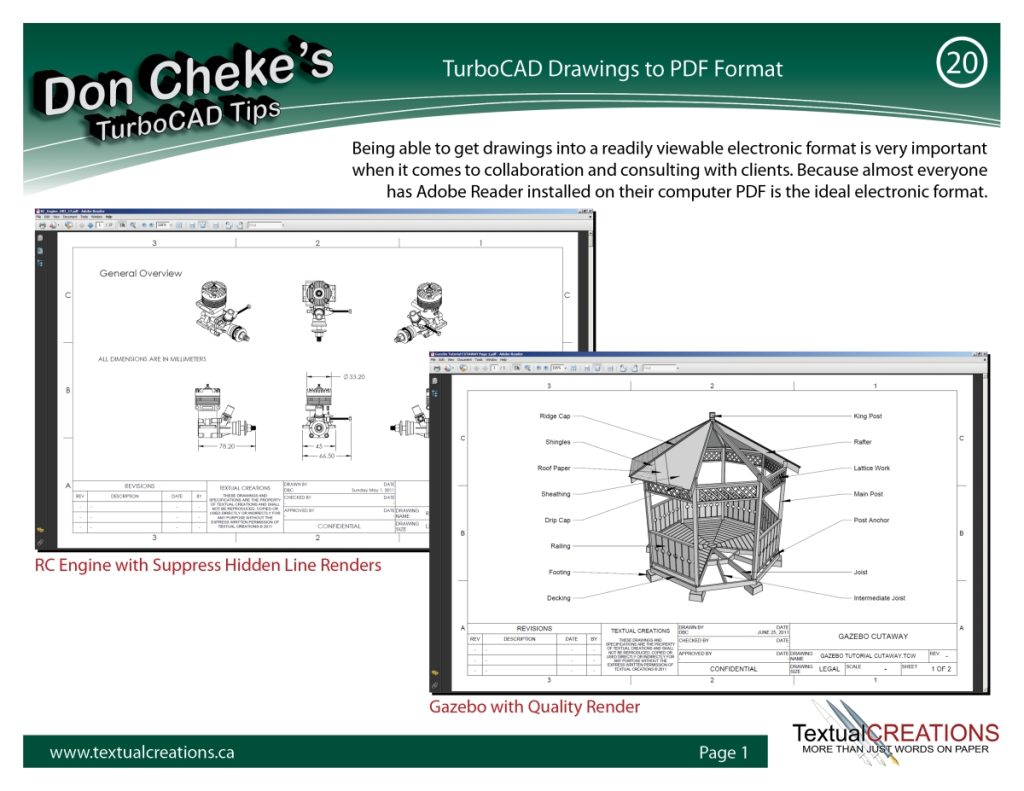
20) TurboCAD Drawings to PDF Format
Being able to get drawings into a readily viewable electronic format is very important when it comes to collaboration and consulting with clients.
Click image to open PDF in a new window. 2.96 MB
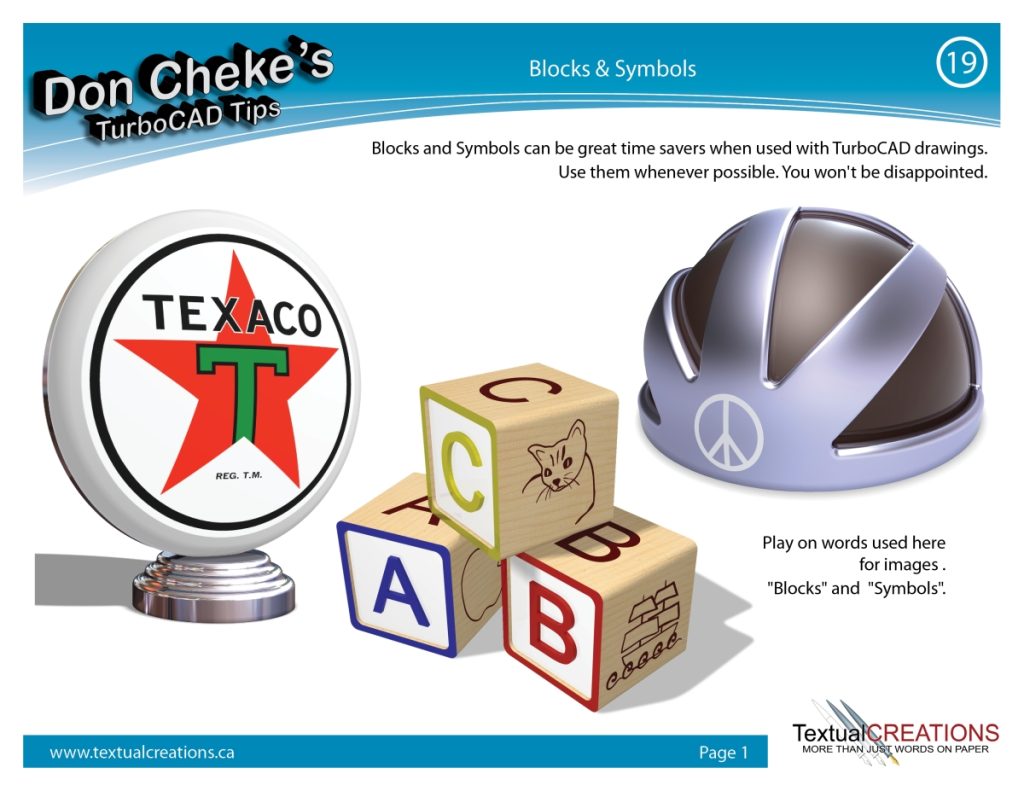
19) Blocks & Symbols
Blocks and Symbols can be great time savers when used with TurboCAD drawings.
Click image to open PDF in a new window. 3.52 MB
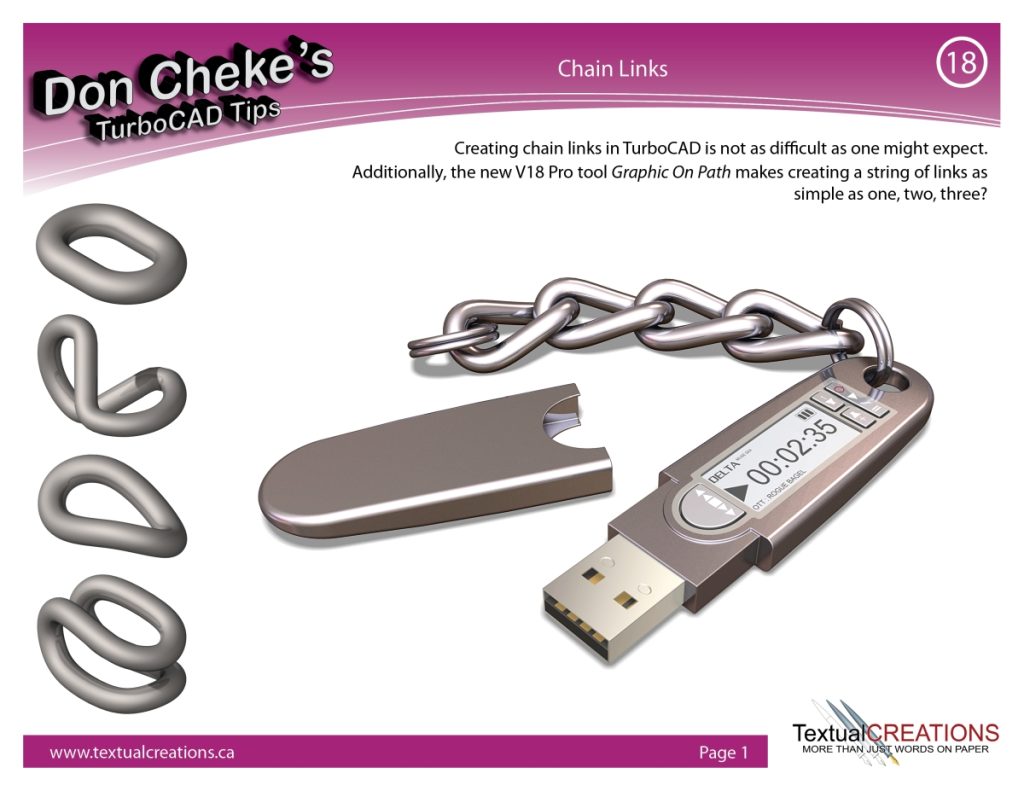
18) Chain Links
Creating chain links in TurboCAD is not as difficult as one might expect.
Click image to open PDF in a new window. 2.39 MB
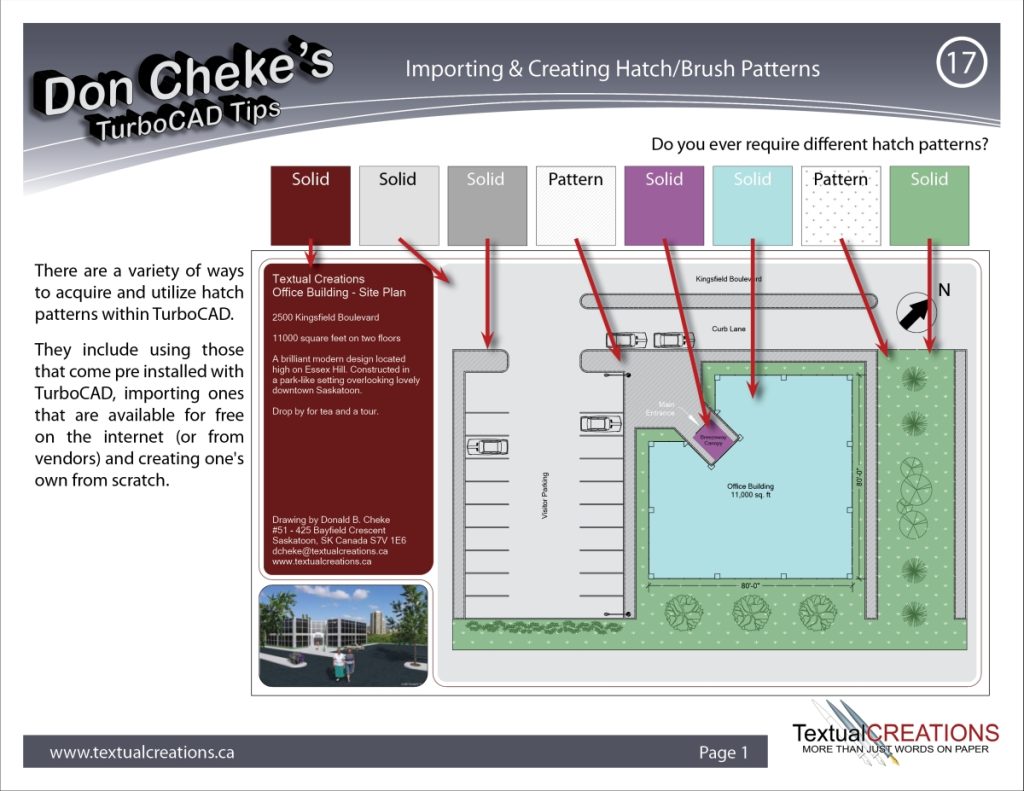
17) Importing & Creating Hatch/Brush Patterns
Do you ever require different hatch patterns?
Click image to open PDF in a new window. 2.13 MB
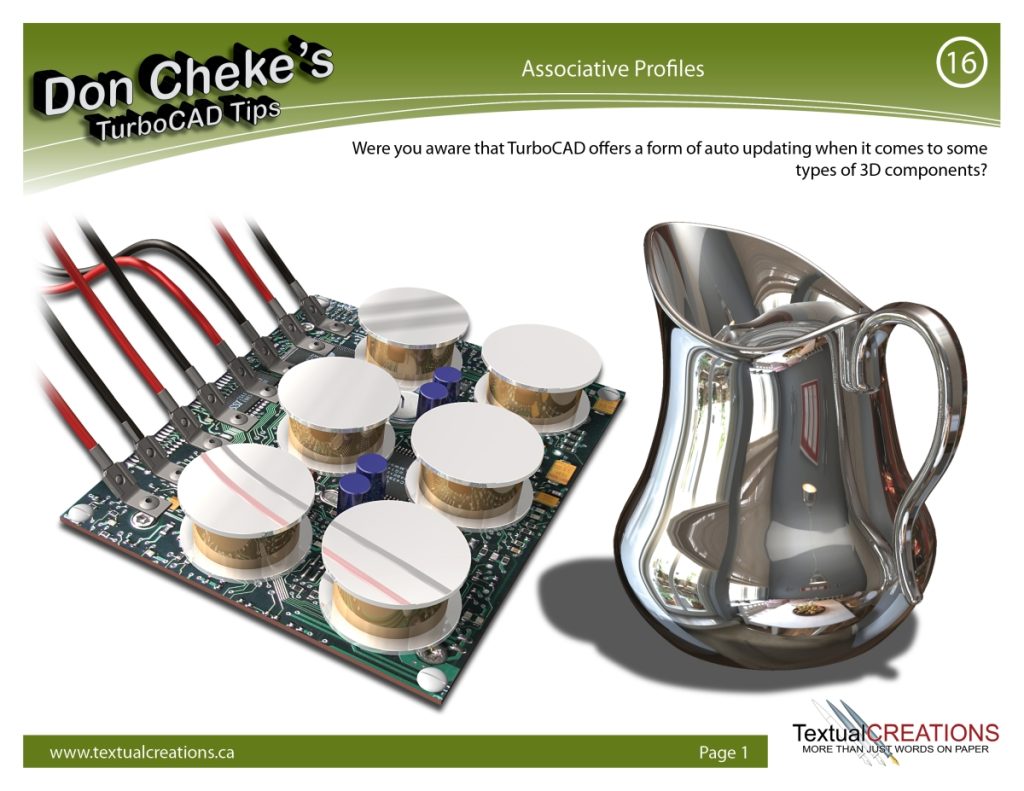
16) Associative Profiles
Were you aware that TurboCAD offers a form of auto updating when it comes to some types of 3D components?
Click image to open PDF in a new window. 4.6 MB
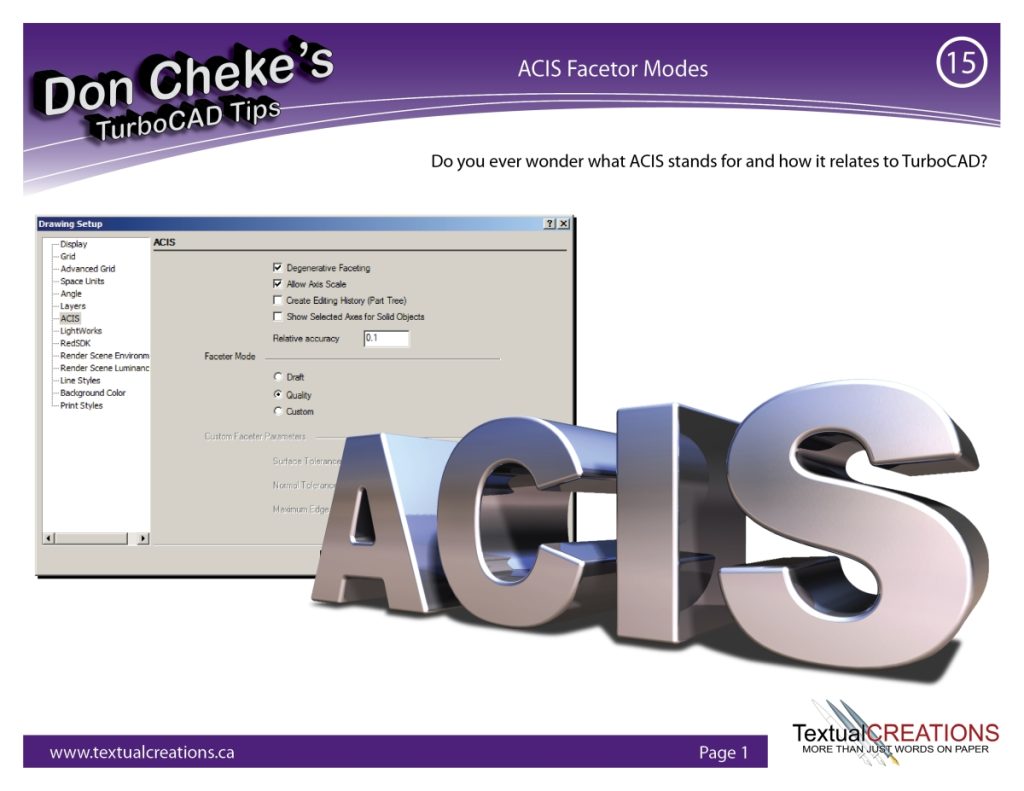
15) ACIS Facetor Modes
Do you ever wonder what ACIS stands for and how it relates to TurboCAD?
Click image to open PDF in a new window. 2.71 MB
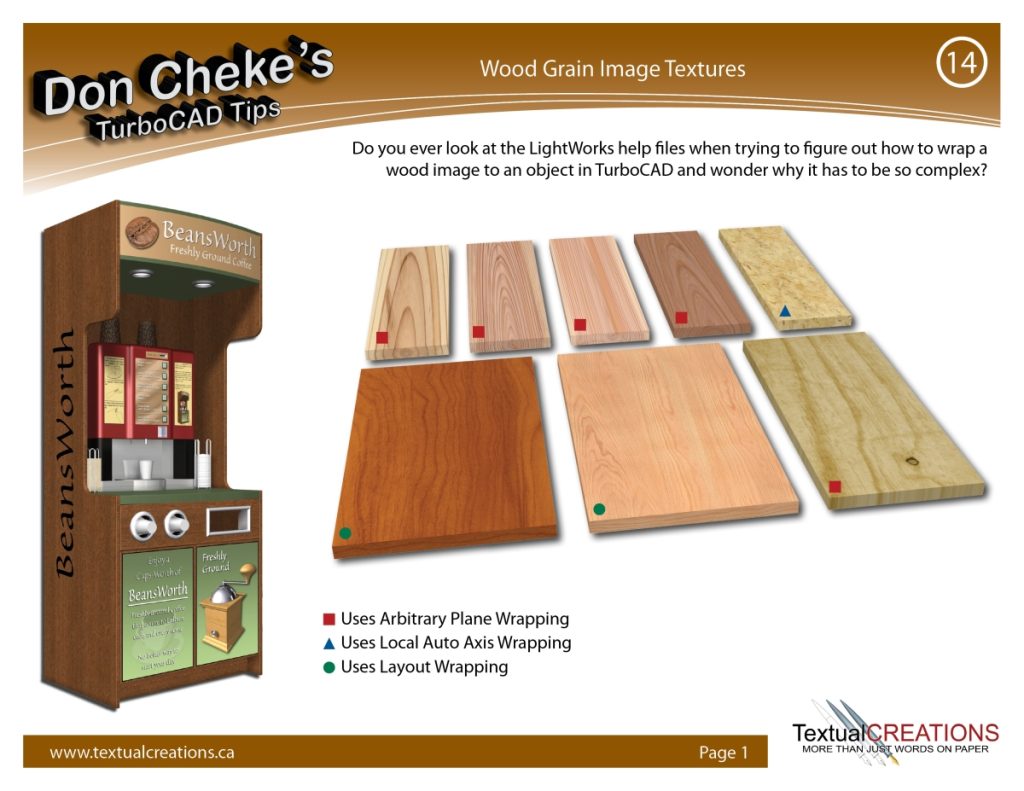
14) Wood Grain Image Textures
Do you ever look at the LightWorks help files when trying to figure out how to wrap a wood image to an object in TurboCAD and wonder why it has to be so complex?
Click image to open PDF in a new window. 3.17 MB
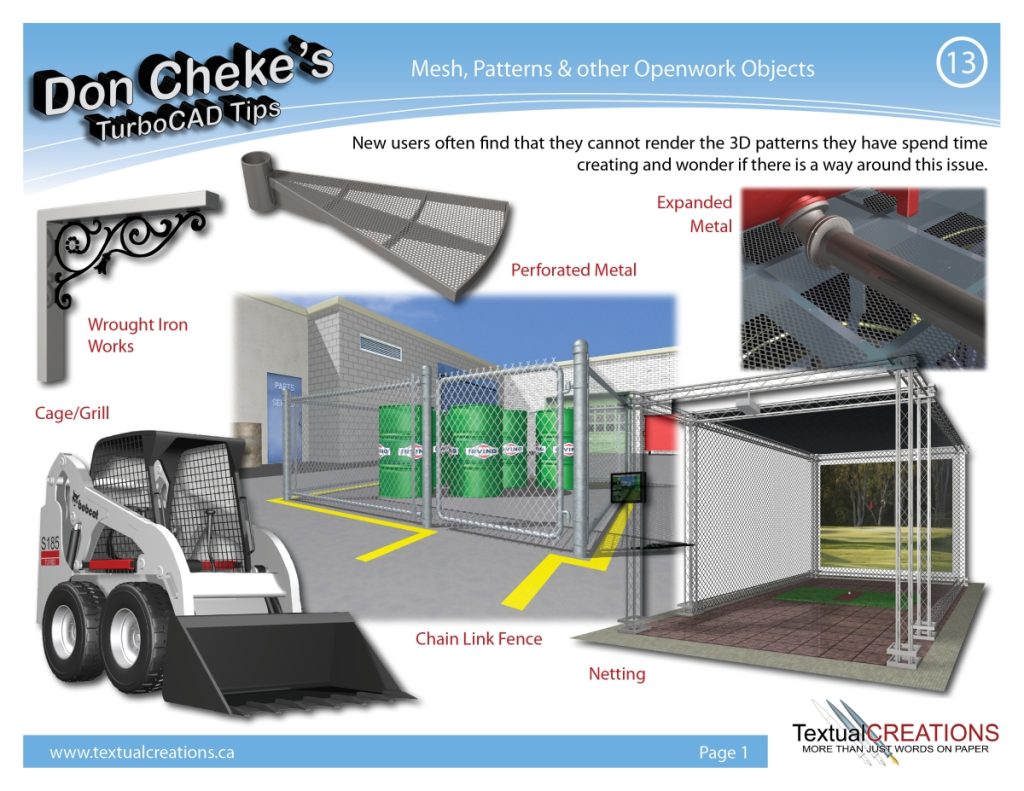
13) Mesh, Patterns & other Openwork Objects
New users often find that they cannot render the 3D patterns they have spend time creating and wonder if there is a way around this issue.
Click image to open PDF in a new window. 4.15 MB
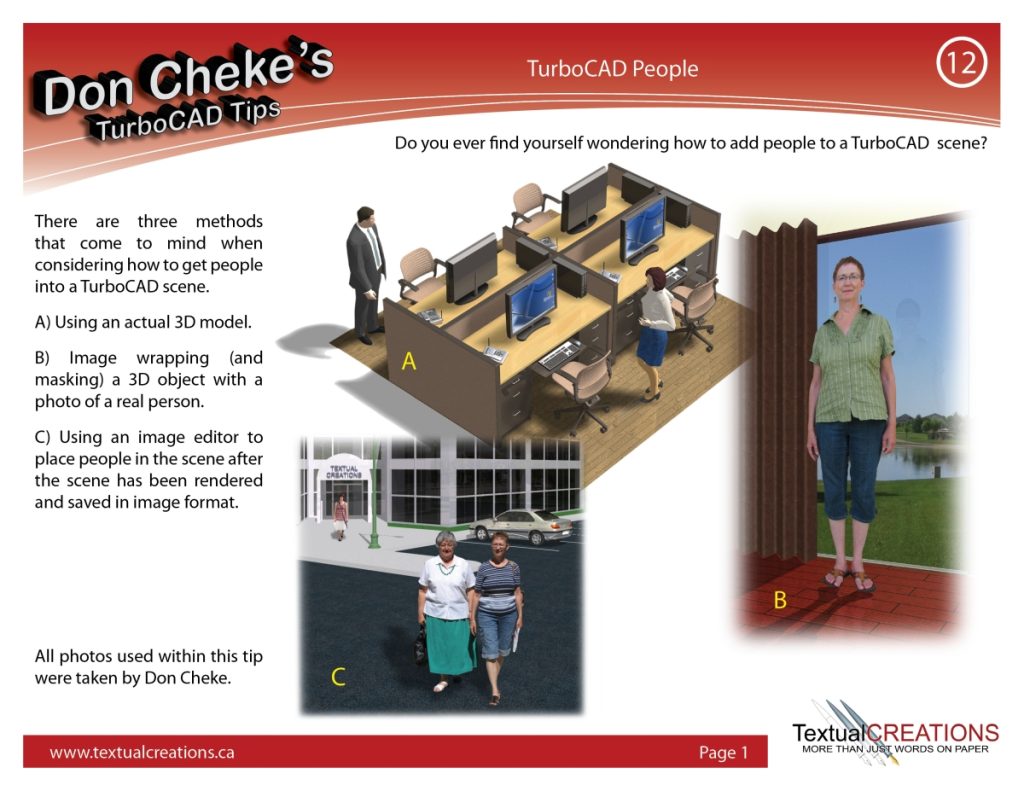
12) TurboCAD People
Do you ever find yourself wondering how to add people to a TurboCAD scene?
Click image to open PDF in a new window. 3.16 MB
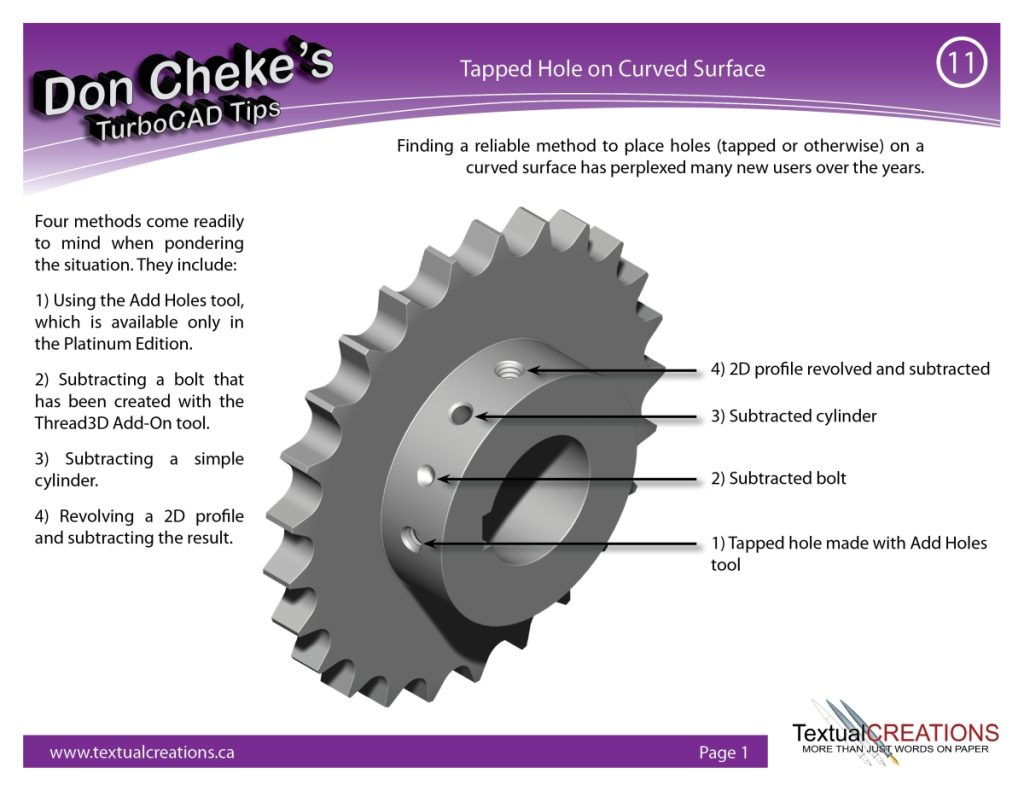
11) Tapped Hole on Curved Surface
Finding a reliable method to place holes (tapped or otherwise) on a curved surface has perplexed many new users over the years.
Click image to open PDF in a new window. 1.98 MB
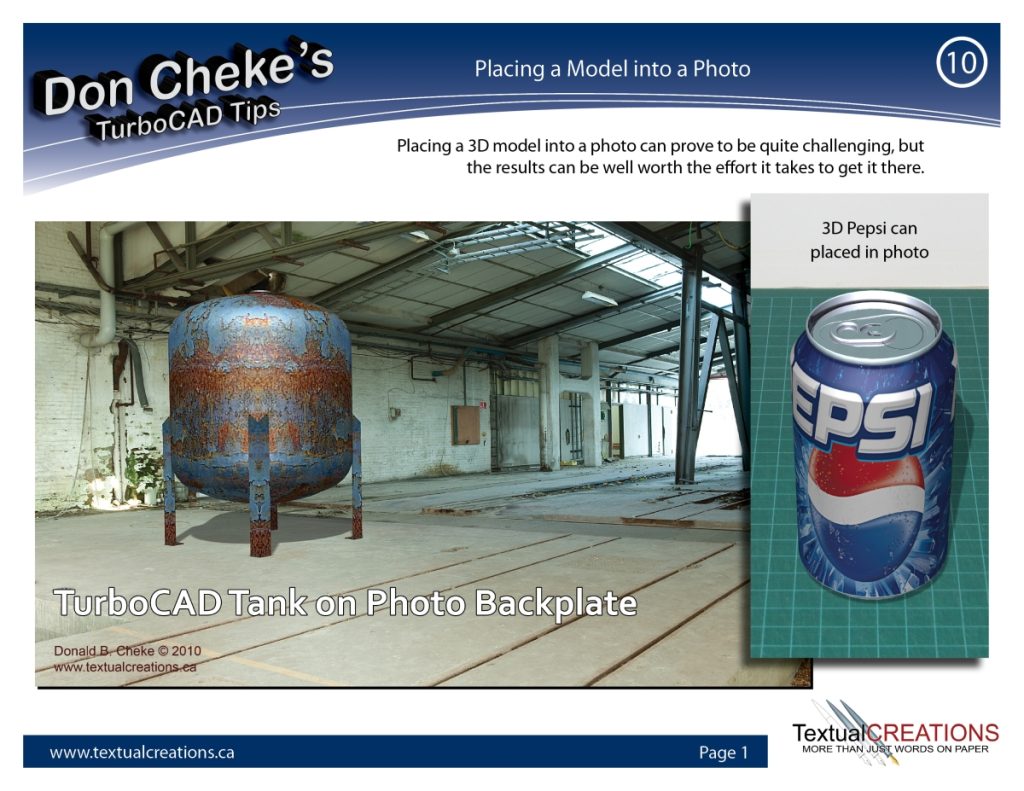
10) Placing a Model into a Photo
Placing a 3D model into a photo can prove to be quite challenging, but the results can be well worth the effort it takes to get it there.
Click image to open PDF in a new window. 2.87 MB
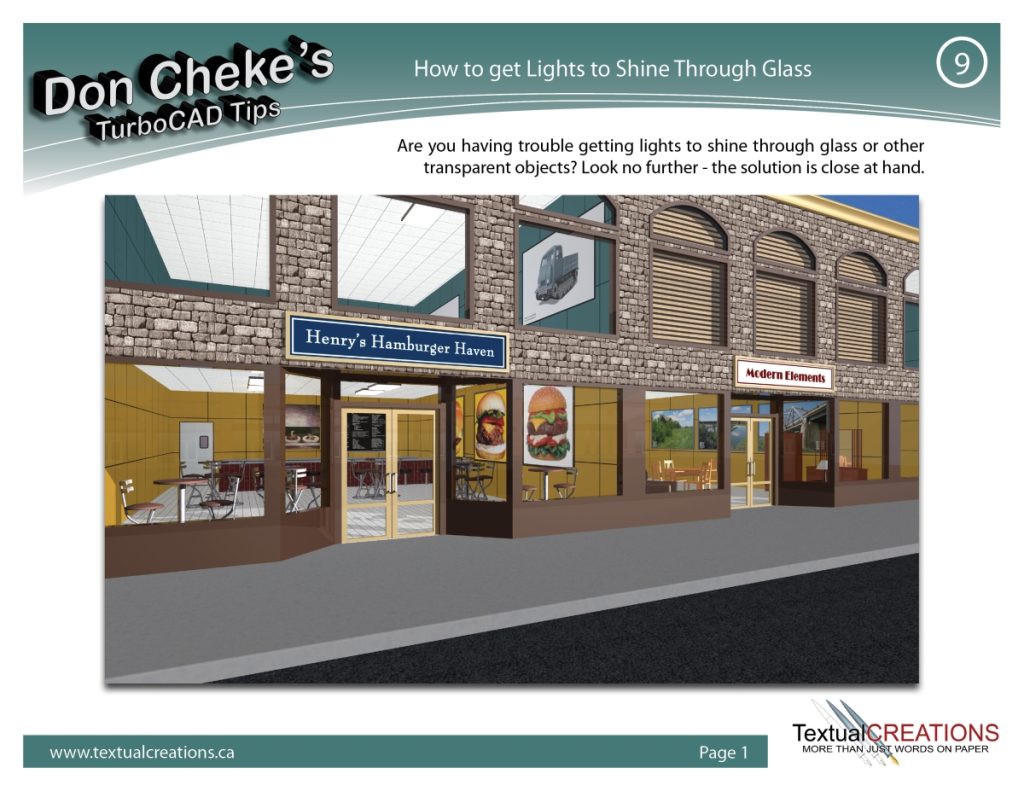
9) How to get Lights to Shine Through Glass
Are you having trouble getting lights to shine through glass or other transparent objects? Look no further – the solution is close at hand.
Click image to open PDF in a new window. 2.19 MB
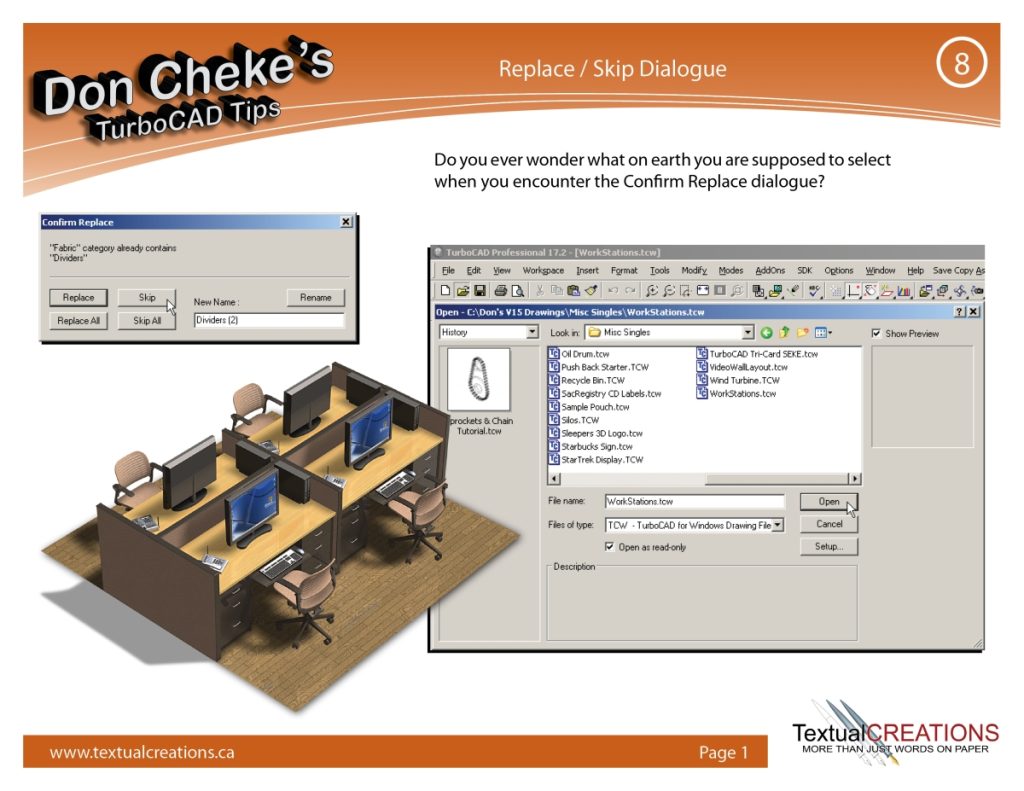
8) Replace / Skip Dialogue
Do you ever wonder what on earth you are supposed to select when you encounter the Confirm Replace dialogue?
Click image to open PDF in a new window. 1.87 MB
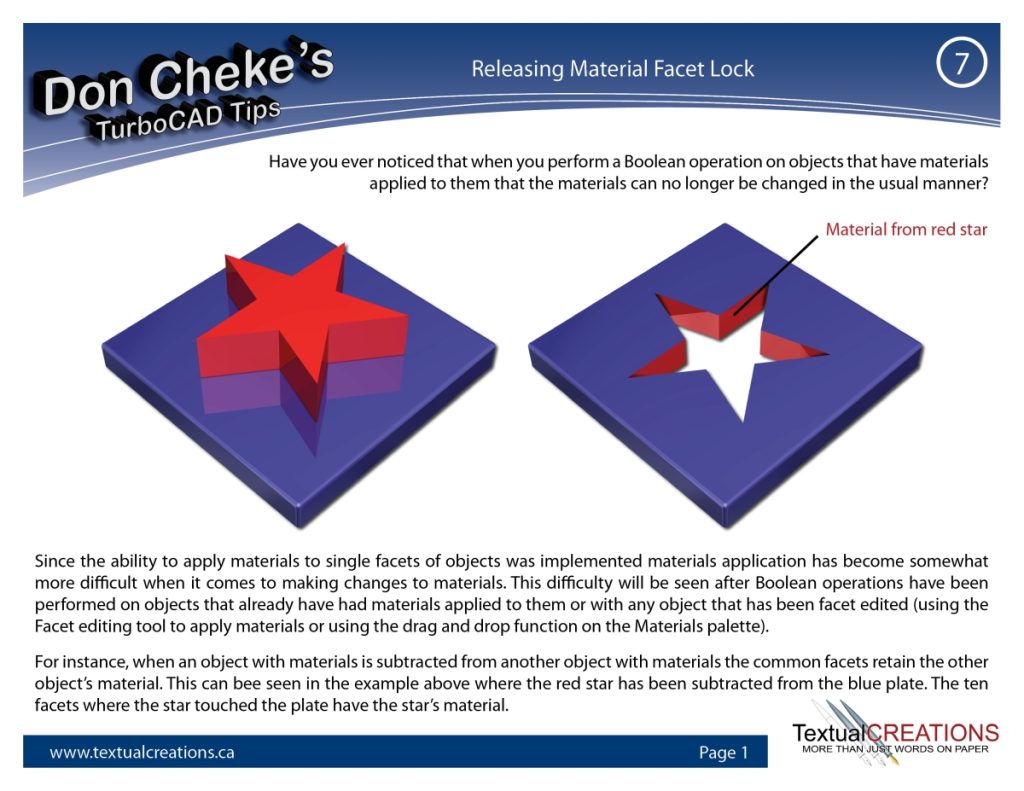
7) Releasing Material Facet Lock
Have you ever noticed that when you perform a Boolean operation on objects that have materials applied to them that the materials can no longer be changed in the usual manner?
Click image to open PDF in a new window. 1.93 MB
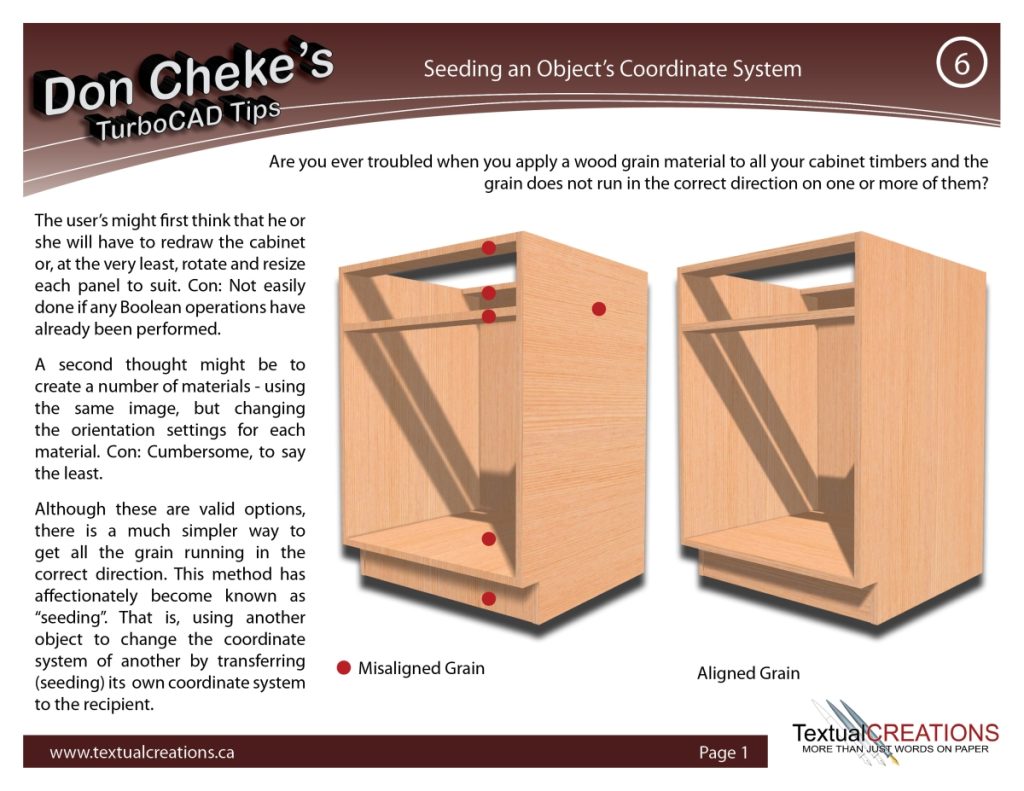
6) Seeding an Object’s Coordinate System
Are you ever troubled when you apply a wood grain material to all your cabinet timbers and the grain does not run in the correct direction on one or more of them?
Click image to open PDF in a new window. 2.75 MB
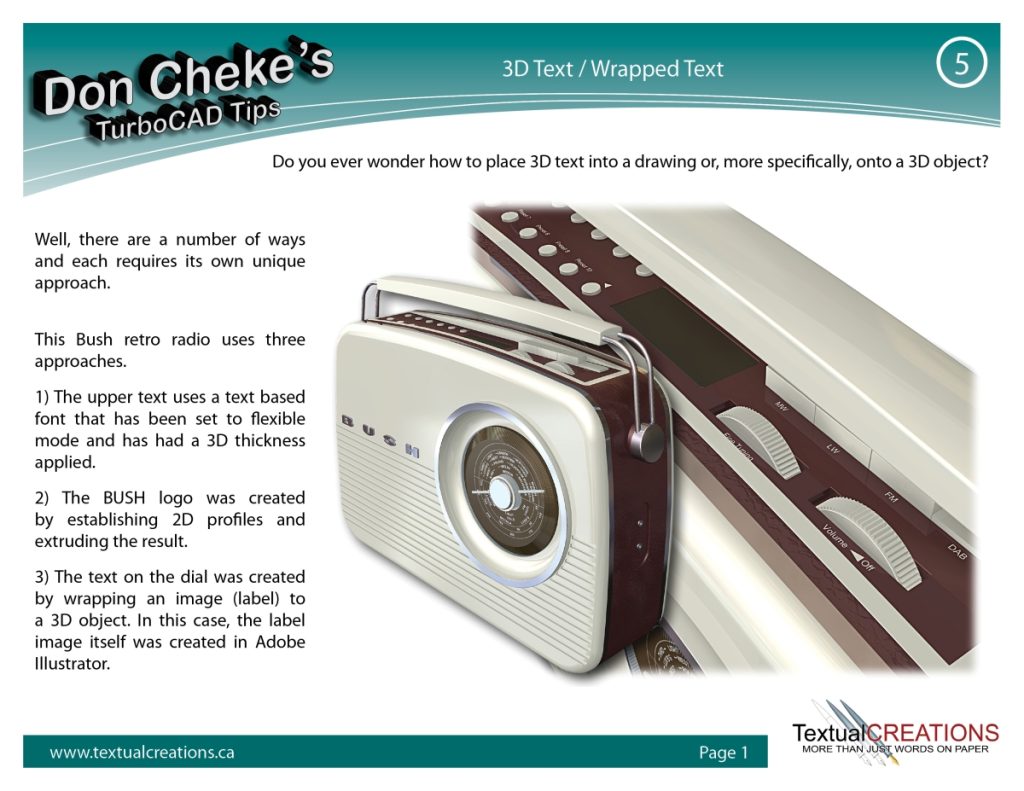
5) 3D Text / Wrapped Text
Do you ever wonder how to place 3D text into a drawing or, more specifically, onto a 3D object?
Click image to open PDF in a new window. 6.12 MB
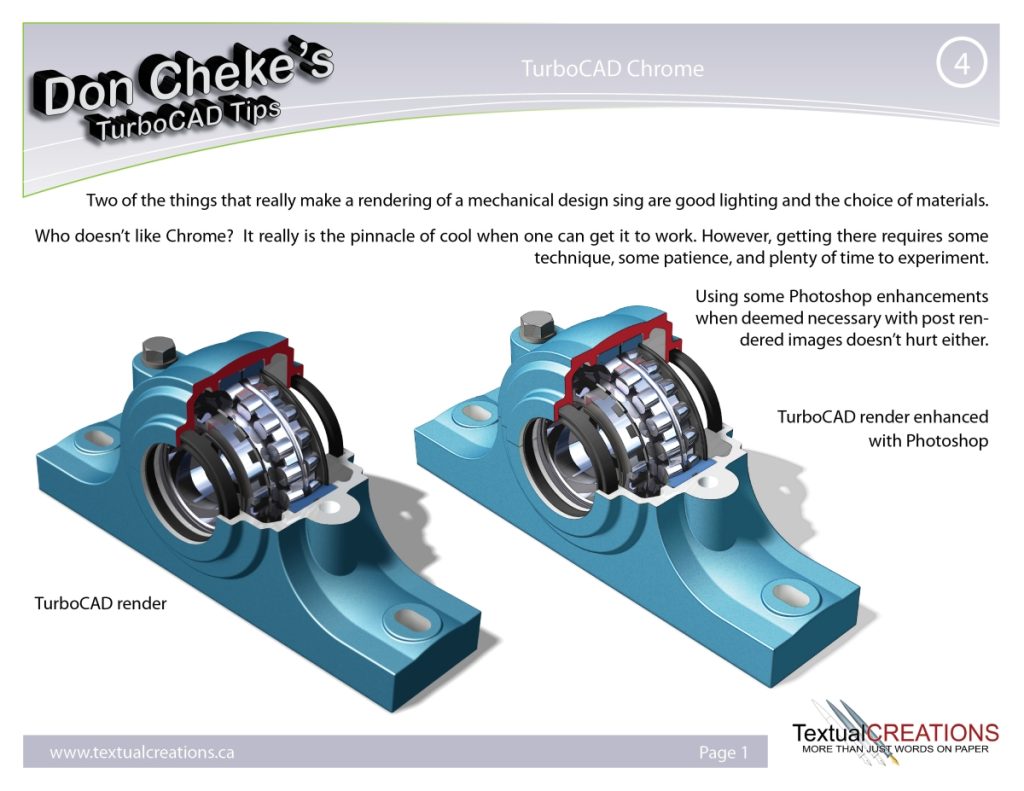
4) TurboCAD Chrome
Two of the things that really make a rendering of a mechanical design sing are good lighting and the choice of materials. Who doesn’t like Chrome?
Click image to open PDF in a new window. 11.5 MB
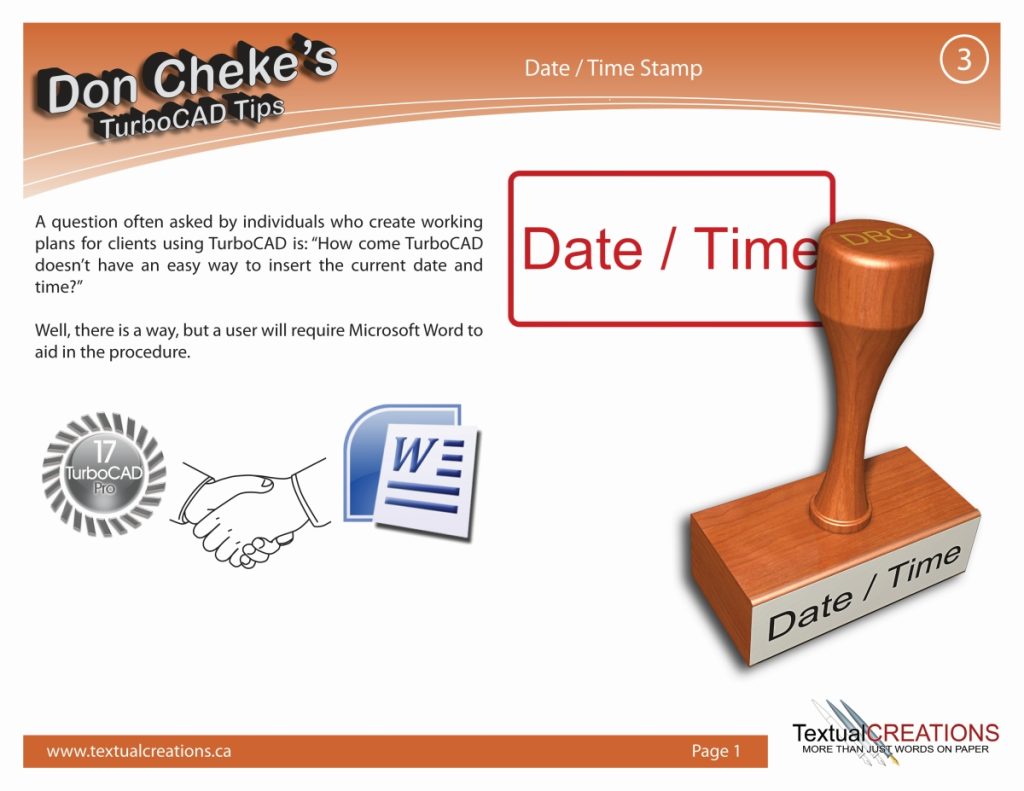
3) Date / Time Stamp
A question often asked by individuals who create working plans for clients using TurboCAD is: “How come TurboCAD doesn’t have an easy way to insert the current date and time?”
Click image to open PDF in a new window. 3.29 MB
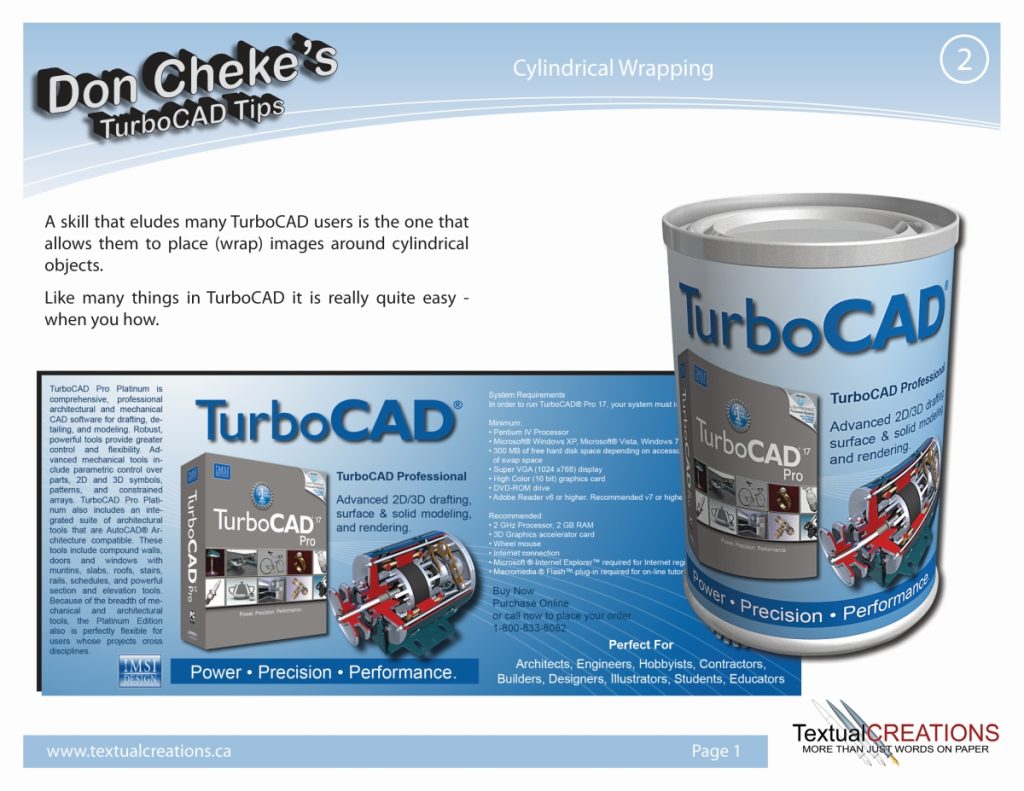
2) Cylindrical Wrapping
A skill that eludes many TurboCAD users is the one that allows them to place (wrap) images around cylindrical objects.
Click image to open PDF in a new window. 5.21 MB
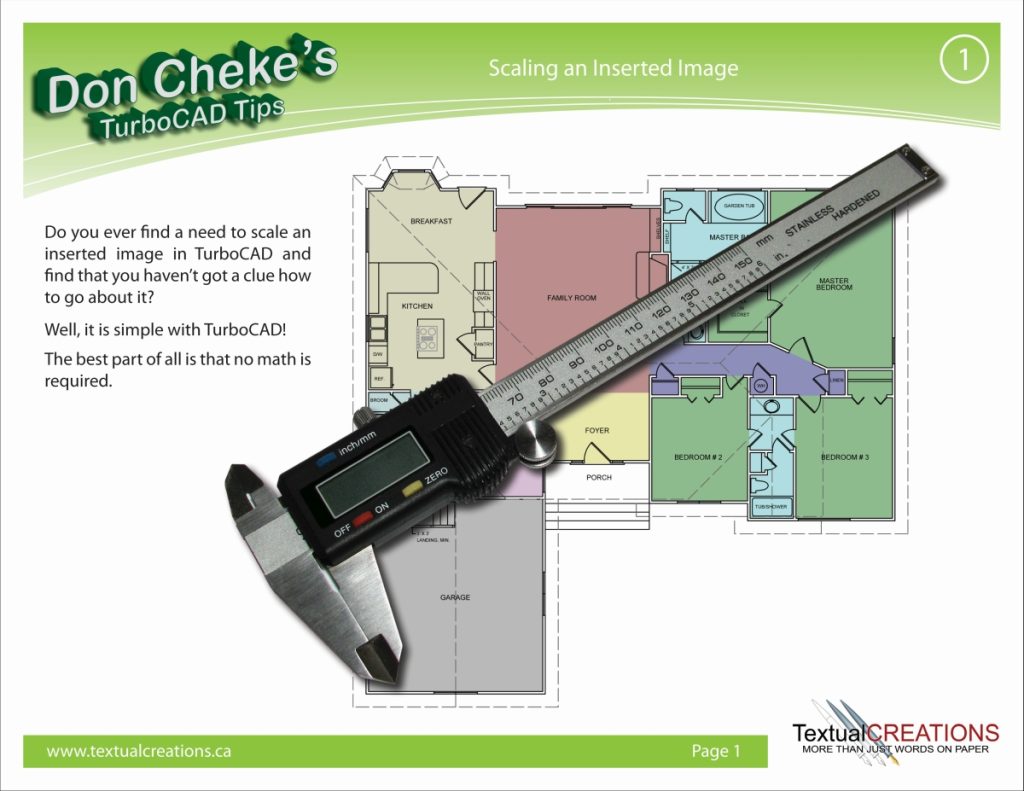
- Scaling an Inserted Image
Do you ever find a need to scale an inserted image in TurboCAD and find that you haven’t got a clue how to go about it?
Click image to open PDF in a new window. 4.72 MB